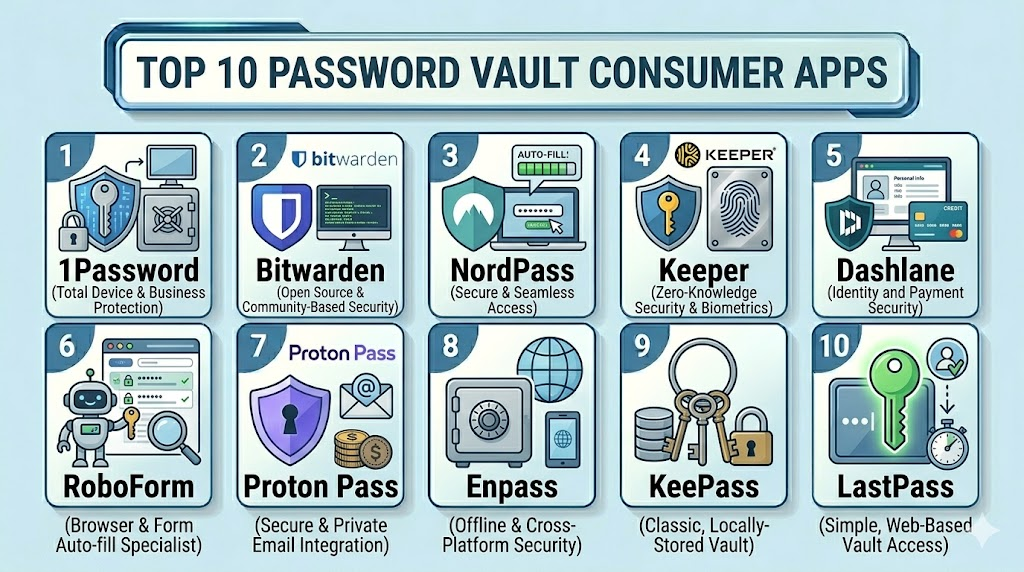
Introduction
Password Vault Consumer Apps help individuals, families, freelancers, students, and everyday internet users store passwords, passkeys, secure notes, payment details, identity records, and login credentials inside an encrypted digital vault. These apps matter now because people manage dozens or hundreds of accounts across banking, email, work tools, shopping, streaming, healthcare, travel, and social platforms. Reusing passwords or saving them in browsers, notebooks, screenshots, or chats can create serious security risk when one account is compromised. A good password vault helps users generate strong passwords, autofill logins safely, share credentials with family members, monitor weak or reused passwords, and prepare for passkey-based sign-ins. Buyers should evaluate encryption model, passkey support, autofill safety, device coverage, family sharing, breach monitoring, emergency access, offline access, pricing, privacy, and recovery options.
Real-world Use Cases
- Secure password storage: Users can store unique passwords for banking, email, shopping, social media, work accounts, and subscription services in one encrypted vault.
- Password generation: Consumers can create strong, unique passwords instead of reusing weak passwords across multiple websites.
- Family credential sharing: Families can securely share streaming accounts, household bills, school logins, Wi-Fi details, and emergency access information.
- Passkey and passwordless login support: Users can manage newer login methods as more websites adopt passkeys and biometric-based authentication.
- Breach and weak password monitoring: Password vaults can help identify reused, weak, old, or exposed credentials that need to be changed.
- Secure note and document storage: Users can store Wi-Fi passwords, recovery codes, software licenses, passport details, insurance notes, and private records.
- Autofill across devices: Password managers help users log in quickly across phones, tablets, laptops, browsers, and desktop apps.
- Travel and emergency preparedness: Users can keep essential login and identity information available securely when traveling or when a trusted family member needs access.
Evaluation Criteria for Buyers
- Encryption and vault security: Check whether the app uses strong encryption, zero-knowledge architecture, secure key handling, and protected vault storage.
- Autofill safety: Buyers should review how the app handles browser autofill, phishing protection, form detection, and confirmation prompts.
- Passkey support: Modern password vaults should support passkeys or clearly explain their roadmap for passwordless authentication.
- Cross-platform coverage: Confirm support for Windows, macOS, Linux, iOS, Android, browser extensions, and wearable or desktop integrations where needed.
- Family sharing: Families should check shared vaults, permissions, item-level sharing, recovery options, and multi-user pricing.
- Breach monitoring: Look for dark web alerts, reused password detection, weak password reports, exposed login warnings, and health score dashboards.
- Recovery options: Buyers should understand what happens if the master password is lost and whether emergency access or account recovery is available.
- Privacy and data handling: Review data storage location, telemetry, account deletion, export controls, privacy policy, and whether the provider can access vault contents.
- Offline access and sync: Check whether vaults work offline, how syncing happens, and whether users can choose cloud or local storage.
- Pricing and value: Compare free plans, family plans, premium features, passkey support, device limits, storage limits, and long-term subscription cost.
Best for
Best for: Individuals, families, freelancers, students, remote workers, and privacy-conscious users who manage many online accounts across multiple devices.
It is useful for anyone who wants stronger passwords, safer autofill, secure sharing, passkey readiness, breach alerts, and less dependence on memory or browser-only storage.
It also fits households that need shared vaults for bills, subscriptions, emergency records, identity details, and family account access.
Not ideal for: Users who only have a few accounts and are fully comfortable with a built-in browser or operating system password manager.
It may feel unnecessary for people who do not want to manage a master password, recovery process, vault settings, or subscription plan.
For very simple needs, Apple Passwords, Google Password Manager, Microsoft account storage, or offline password storage may be enough.
Key Trends in Password Vault Consumer Apps
- Passkeys are becoming central: Password managers are no longer only password storage tools; they increasingly help users store, sync, and use passkeys across devices and browsers.
- Autofill security is under closer review: Browser autofill convenience must be balanced with phishing protection, clickjacking defenses, and user confirmation prompts.
- Family security is becoming a stronger use case: More users want shared vaults, emergency access, recovery options, and secure household credential management.
- Privacy-first products are gaining attention: Open-source clients, zero-knowledge architecture, local vault options, and transparent security models are becoming important trust signals.
- Dark web and breach monitoring are common premium features: Users increasingly expect alerts when email addresses, passwords, or identity data appear in breaches.
- Passwordless login is changing app design: Tools are adding passkey storage, biometric unlock, device-bound credentials, and cross-platform sign-in support.
- Built-in browser managers are raising competition: Apple, Google, and Microsoft continue improving native password tools, forcing standalone apps to offer stronger sharing, auditing, and portability.
- Security audits and breach history matter more: Consumers are paying closer attention to independent audits, incident response, and how vendors communicate security issues.
- Local-first and self-hosted options remain relevant: Some privacy-focused users prefer KeePass, Enpass, or Bitwarden self-hosting instead of fully vendor-managed cloud vaults.
- Account recovery is becoming a key buying factor: Users want strong security without being permanently locked out, so emergency kits, trusted contacts, and recovery workflows matter.
How We Selected These Tools
The tools below were selected using practical buyer-focused evaluation logic for consumer password vault apps.
- Market adoption and recognition among individuals, families, privacy-focused users, security reviewers, and everyday consumers
- Feature completeness across password storage, password generation, autofill, passkeys, secure notes, sharing, vault health, and breach monitoring
- Security posture signals including encryption model, zero-knowledge claims, open-source availability, audit posture, and recovery design
- Cross-platform support across desktop, mobile, browser extensions, and operating systems
- Ease of use for non-technical users who need daily login support without complex setup
- Privacy and data control including local storage, export options, self-hosting, account deletion, and vault portability
- Family and household fit including shared vaults, permission controls, emergency access, and multi-user plans
- Reliability and performance signals such as sync consistency, autofill behavior, mobile unlock, and browser extension usability
- Pricing and value across free plans, paid personal plans, family plans, and premium security features
- Long-term readiness for passkeys, passwordless login, breach response, and changing consumer security needs
Top 10 Password Vault Consumer Apps Tools
1- 1Password
Short description: 1Password is a premium password vault for individuals and families that focuses on secure vault storage, passkeys, family sharing, travel mode, and polished cross-platform usability. It is best for users who want a refined password manager with strong everyday workflows.
Key Features
- Encrypted password and passkey vaults
- Family and shared vault support
- Password generator and autofill
- Watchtower-style security alerts and vault health checks
- Secure notes, identity records, and payment storage
- Travel mode for hiding selected vaults while traveling
- Apps and browser extensions across major platforms
Pros
- Strong user experience across devices and browsers
- Good family sharing and household security workflows
- Useful security alerts for weak, reused, and exposed credentials
Cons
- No broad free tier for long-term personal use
- Some users may find it more expensive than open-source alternatives
- Account recovery depends on setup and family or admin structure
Platforms / Deployment
Web / Windows / macOS / Linux / iOS / Android
Cloud
Security & Compliance
Strong encryption and zero-knowledge-style vault design are commonly associated with the product, but buyers should validate exact controls directly. MFA, passkey support, encryption, audit logs, RBAC, SOC 2, ISO 27001, GDPR, and other compliance details: Not publicly stated for all items.
Integrations & Ecosystem
1Password works well for users who need secure daily login access across multiple devices, browsers, and shared family vaults. Its ecosystem is especially strong for families and users who want polished password, passkey, and identity storage.
- Browser extensions
- Mobile apps
- Desktop apps
- Family sharing
- Passkey workflows
- Secure document and note storage
Support & Community
1Password provides product documentation, onboarding help, support channels, and security education resources. Users should review recovery setup, emergency access approach, export options, and family plan structure before committing.
2- Bitwarden
Short description: Bitwarden is an open-source password manager popular with privacy-conscious users, families, and people who want a strong free plan. It supports encrypted vaults, cross-platform sync, passkeys, sharing, and optional self-hosting for advanced users.
Key Features
- Open-source password vault clients
- Free plan with broad core functionality
- Password, passkey, secure note, and card storage
- Password generator and autofill
- Vault health and breach-related reports depending on plan
- Family and organization sharing options
- Self-hosting option for advanced users
Pros
- Excellent value for free and paid users
- Open-source model supports transparency
- Strong cross-platform coverage and flexibility
Cons
- Interface may feel less polished than some premium competitors
- Advanced security reports may require paid access
- Self-hosting requires technical knowledge
Platforms / Deployment
Web / Windows / macOS / Linux / iOS / Android
Cloud / Self-hosted option available
Security & Compliance
Bitwarden is widely known as an open-source password management service, but buyers should validate specific controls directly. MFA, encryption, audit logs, RBAC, SOC 2, ISO 27001, GDPR, and enterprise compliance details: Not publicly stated for all items.
Integrations & Ecosystem
Bitwarden is useful for users who want affordability, transparency, and broad device support. It fits both simple consumer use and advanced privacy-focused workflows.
- Browser extensions
- Mobile and desktop apps
- Passkey support
- Family sharing
- Self-hosted deployment option
- Developer and community ecosystem
Support & Community
Bitwarden has documentation, community resources, support channels, and a strong open-source user base. Buyers should review premium features, self-hosting requirements, account recovery, and export options.
3- NordPass
Short description: NordPass is a consumer password manager from the Nord security ecosystem, focused on simple vault management, password health, passkeys, breach scanning, and cross-device autofill. It is best for users who want an easy modern interface with security-focused features.
Key Features
- Password and passkey storage
- Password generator and autofill
- Password health dashboard
- Data breach scanning features may vary by plan
- Secure notes and payment card storage
- Multi-device sync
- Family and personal plan options
Pros
- Clean and beginner-friendly interface
- Good fit for users already using Nord ecosystem products
- Strong everyday password storage and autofill workflow
Cons
- Some premium security features may require paid plans
- Less flexible than open-source or self-hosted tools
- Users should review exact plan limits and renewal pricing
Platforms / Deployment
Web / Windows / macOS / Linux / iOS / Android
Cloud
Security & Compliance
NordPass is commonly associated with modern encryption and password health features, but exact compliance details should be validated directly. MFA, encryption, audit logs, RBAC, SOC 2, ISO 27001, GDPR, and other controls: Not publicly stated for all items.
Integrations & Ecosystem
NordPass fits users who want a modern password vault with security monitoring and simple onboarding. It works well for personal and family use where ease of use matters.
- Browser extensions
- Desktop apps
- Mobile apps
- Password health reports
- Passkey workflows
- Nord ecosystem alignment
Support & Community
NordPass provides documentation, support resources, and customer service options. Users should check plan pricing, breach monitoring availability, recovery options, and platform compatibility.
4- Keeper
Short description: Keeper is a security-focused password manager for individuals, families, and organizations that need encrypted vaults, secure sharing, breach monitoring add-ons, and strong vault controls. It is best for users who want a robust password vault with advanced security options.
Key Features
- Encrypted password vault
- Secure password sharing
- Password generator and autofill
- Breach monitoring options may vary by plan
- Secure file storage options may vary
- Family plan and emergency access support
- Cross-platform apps and browser extensions
Pros
- Strong security-focused feature set
- Good for families and users who need secure sharing
- Useful add-ons for monitoring and secure storage
Cons
- Some features may require add-ons or higher plans
- Interface may feel more security-oriented than minimalist
- Users should review total cost before purchase
Platforms / Deployment
Web / Windows / macOS / Linux / iOS / Android
Cloud
Security & Compliance
Keeper is positioned as a security-focused password manager, but buyers should validate specific controls directly. MFA, encryption, audit logs, RBAC, SOC 2, ISO 27001, GDPR, and other compliance claims: Not publicly stated for all items.
Integrations & Ecosystem
Keeper is useful for consumers and families who want secure sharing, strong vault controls, and security add-ons. It can also scale into business use if needed.
- Browser extensions
- Mobile and desktop apps
- Secure sharing
- Emergency access
- Breach monitoring add-ons
- Secure file storage options
Support & Community
Keeper provides support resources, documentation, and customer service options. Buyers should review add-on pricing, family sharing permissions, recovery settings, and breach monitoring details.
5- Dashlane
Short description: Dashlane is a polished password manager known for password storage, autofill, password health, dark web monitoring, passkey support, and consumer-friendly security features. It is best for users who want a premium experience with strong monitoring and simple daily use.
Key Features
- Password and passkey vault
- Autofill and password generator
- Password health dashboard
- Dark web monitoring features
- Secure notes and payment storage
- Family and personal plans
- Web-first and mobile password management
Pros
- Strong security monitoring and usability
- Good for users who want a premium guided experience
- Useful password health tools for improving account security
Cons
- Pricing may be higher than some alternatives
- Some features vary by plan and region
- Users wanting local-only storage may prefer another tool
Platforms / Deployment
Web / iOS / Android / Browser extensions
Cloud
Security & Compliance
Dashlane is commonly associated with encrypted vaults and monitoring features, but exact controls should be validated directly. MFA, encryption, audit logs, RBAC, SOC 2, ISO 27001, GDPR, and compliance details: Not publicly stated for all items.
Integrations & Ecosystem
Dashlane works well for users who want password management with strong alerts, clean usability, and identity-oriented security features.
- Browser extensions
- Mobile apps
- Password health tools
- Dark web monitoring
- Passkey support
- Secure note and payment storage
Support & Community
Dashlane provides user support, help documentation, and onboarding resources. Buyers should review free plan limits, premium pricing, export options, and account recovery workflows.
6- RoboForm
Short description: RoboForm is a long-running password manager known for strong form filling, password storage, autofill, and affordable personal plans. It is best for users who want reliable autofill across websites and devices.
Key Features
- Password vault and autofill
- Advanced form filling
- Password generator
- Secure sharing options
- Emergency access features
- Cross-platform apps and browser extensions
- Bookmark and identity storage features may vary
Pros
- Strong form filling experience
- Often practical for budget-conscious users
- Good option for users who want simple password and identity autofill
Cons
- Interface may feel more traditional than newer tools
- Advanced monitoring may be lighter than premium competitors
- Users should validate passkey and modern browser workflows
Platforms / Deployment
Web / Windows / macOS / Linux / iOS / Android
Cloud
Security & Compliance
Specific controls should be validated directly. MFA, encryption, audit logs, RBAC, SOC 2, ISO 27001, GDPR, and passkey support details: Not publicly stated for all items.
Integrations & Ecosystem
RoboForm is useful for users who care about autofill reliability, forms, identity details, and everyday login speed. It works well for personal users with many repeated web forms.
- Browser extensions
- Desktop apps
- Mobile apps
- Form filling
- Secure sharing
- Emergency access
Support & Community
RoboForm provides help resources and support channels. Users should review premium features, family plan details, export options, and current passkey support before choosing it.
7- Proton Pass
Short description: Proton Pass is a privacy-focused password manager from Proton, offering encrypted vaults, email aliases, passkey support, secure notes, and Proton ecosystem integration. It is best for privacy-conscious users who already use or trust Proton products.
Key Features
- Password and passkey storage
- Email alias creation
- Secure notes and card storage
- Open-source clients
- Proton ecosystem integration
- Browser extensions and mobile apps
- Vault sharing options may vary by plan
Pros
- Strong privacy positioning
- Useful email alias feature for reducing spam and tracking
- Good fit for Proton Mail and Proton VPN users
Cons
- Newer than some long-established competitors
- Some advanced features may require paid Proton plans
- Business and family workflows should be validated by plan
Platforms / Deployment
Web / Windows / macOS / Linux / iOS / Android / Browser extensions
Cloud
Security & Compliance
Proton Pass is associated with encrypted vaults and open-source clients, but buyers should validate all controls directly. MFA, encryption, audit logs, RBAC, SOC 2, ISO 27001, GDPR, and other compliance details: Not publicly stated for all items.
Integrations & Ecosystem
Proton Pass is useful for users who want password management combined with privacy tools such as email aliases and Proton account protection.
- Proton ecosystem integration
- Email aliases
- Browser extensions
- Mobile apps
- Passkey workflows
- Secure notes and cards
Support & Community
Proton provides support resources and documentation across its ecosystem. Users should review plan limits, alias availability, recovery options, and Proton account security settings.
8- Enpass
Short description: Enpass is a password manager that allows users to store encrypted vaults locally or sync through their own cloud provider. It is best for users who want more control over where vault data is stored.
Key Features
- Local encrypted vault storage
- Optional sync through personal cloud services
- Password, passkey, card, and note storage
- Browser extensions
- Cross-platform apps
- Password generator and autofill
- One-time or subscription pricing options may vary
Pros
- Good for users who prefer local or personal-cloud storage
- Strong cross-platform support
- Useful for privacy-conscious users who want more vault control
Cons
- Setup can be less seamless than fully cloud-managed tools
- Users are more responsible for sync and backup choices
- Collaboration and family sharing may not be as simple as premium cloud tools
Platforms / Deployment
Web / Windows / macOS / Linux / ChromeOS / iOS / Android
Local / Personal cloud sync / Cloud options vary
Security & Compliance
Specific controls should be validated directly. MFA, encryption, audit logs, RBAC, SOC 2, ISO 27001, GDPR, passkey support, and cloud-sync security depend on configuration and should be confirmed.
Integrations & Ecosystem
Enpass fits users who want password management without relying fully on a vendor-managed cloud vault. It is useful for local-first or personal cloud workflows.
- Browser extensions
- Desktop apps
- Mobile apps
- Personal cloud sync
- Local vault storage
- Autofill and password generation
Support & Community
Enpass provides documentation and support resources. Users should review backup setup, sync provider security, recovery options, pricing model, and platform compatibility.
9- KeePass
Short description: KeePass is a free, open-source password manager that stores passwords in an encrypted local database. It is best for technical users who want maximum local control and do not mind managing syncing, backups, and plugins themselves.
Key Features
- Local encrypted password database
- Free and open-source model
- Strong customization through plugins
- Portable vault file support
- Password generator
- Secure notes and custom fields
- Community ecosystem and unofficial ports
Pros
- Strong local control and no required subscription
- Highly customizable for technical users
- Good fit for users who do not want vendor-managed cloud storage
Cons
- Less beginner-friendly than modern cloud password managers
- Syncing and mobile access require extra setup
- Unofficial ports and plugins require careful trust review
Platforms / Deployment
Windows / macOS / Linux / Mobile access through compatible ports
Local / Self-managed
Security & Compliance
KeePass is open-source and local-first, but users are responsible for safe configuration. MFA, cloud sync security, audit logs, RBAC, SOC 2, ISO 27001, GDPR, and managed compliance: Not publicly stated or not applicable depending on setup.
Integrations & Ecosystem
KeePass is ideal for users who want to control their own vault file and avoid mandatory cloud services. It is flexible but requires more responsibility.
- Local encrypted database
- Plugin ecosystem
- Portable vault files
- Community tools
- Manual sync options
- Third-party mobile apps and ports
Support & Community
KeePass relies heavily on community documentation, forums, open-source resources, and third-party ecosystem support. Users should be comfortable managing backups, plugins, and vault recovery.
10- LastPass
Short description: LastPass is a long-running password manager with password storage, autofill, secure sharing, and family plan options. It remains widely recognized, but users should carefully review its security history, current controls, and whether it fits their trust expectations.
Key Features
- Password vault and autofill
- Password generator
- Secure notes and form filling
- Family sharing options
- Dark web monitoring features may vary by plan
- Browser extensions and mobile apps
- Emergency access options may vary
Pros
- Familiar interface for many long-time users
- Broad platform and browser support
- Useful core password management features
Cons
- Security history requires careful buyer review
- Some users may prefer alternatives with stronger trust signals
- Free plan and feature limits may not fit all users
Platforms / Deployment
Web / Windows / macOS / Linux access via browser / iOS / Android
Cloud
Security & Compliance
Users should validate current security controls and incident response history directly. MFA, encryption, audit logs, RBAC, SOC 2, ISO 27001, GDPR, and other controls: Not publicly stated for all items.
Integrations & Ecosystem
LastPass supports standard password management workflows across browsers and devices. It may suit users who already use it, but new buyers should compare alternatives carefully.
- Browser extensions
- Mobile apps
- Secure sharing
- Password generation
- Emergency access
- Dark web monitoring depending on plan
Support & Community
LastPass provides support resources and account help. Buyers should review recovery options, security documentation, current breach response posture, plan limits, and migration options before choosing it.
Comparison Table
| Tool Name | Best For | Platform(s) Supported | Deployment | Standout Feature | Public Rating |
|---|---|---|---|---|---|
| 1Password | Families and premium users | Web / Windows / macOS / Linux / iOS / Android | Cloud | Polished vault sharing and passkey support | N/A |
| Bitwarden | Free-plan and open-source users | Web / Windows / macOS / Linux / iOS / Android | Cloud / Self-hosted | Strong free plan and open-source model | N/A |
| NordPass | Beginners wanting simple security | Web / Windows / macOS / Linux / iOS / Android | Cloud | Clean interface and password health tools | N/A |
| Keeper | Security-focused families | Web / Windows / macOS / Linux / iOS / Android | Cloud | Secure sharing and security add-ons | N/A |
| Dashlane | Premium monitoring and usability | Web / iOS / Android / Browser extensions | Cloud | Password health and dark web monitoring | N/A |
| RoboForm | Autofill and form filling | Web / Windows / macOS / Linux / iOS / Android | Cloud | Strong form-filling workflow | N/A |
| Proton Pass | Privacy-focused users | Web / Windows / macOS / Linux / iOS / Android | Cloud | Passwords plus email aliases | N/A |
| Enpass | Local or personal-cloud vault control | Web / Windows / macOS / Linux / iOS / Android | Local / Personal cloud sync | User-controlled vault storage | N/A |
| KeePass | Technical local-first users | Windows / macOS / Linux / Mobile ports vary | Local / Self-managed | Free open-source local vault | N/A |
| LastPass | Existing users needing familiar workflows | Web / Windows / macOS / Browser / iOS / Android | Cloud | Recognized password manager ecosystem | N/A |
Evaluation & Scoring of Password Vault Consumer Apps
| Tool Name | Core 25% | Ease 15% | Integrations 15% | Security 10% | Performance 10% | Support 10% | Value 15% | Weighted Total 0–10 |
|---|---|---|---|---|---|---|---|---|
| 1Password | 9 | 9 | 9 | 9 | 9 | 9 | 8 | 8.85 |
| Bitwarden | 9 | 8 | 9 | 9 | 8 | 8 | 10 | 8.90 |
| NordPass | 8 | 9 | 8 | 8 | 8 | 8 | 8 | 8.20 |
| Keeper | 9 | 8 | 8 | 9 | 8 | 8 | 7 | 8.20 |
| Dashlane | 8 | 9 | 8 | 8 | 8 | 8 | 7 | 8.05 |
| RoboForm | 8 | 8 | 8 | 8 | 8 | 8 | 9 | 8.15 |
| Proton Pass | 8 | 8 | 8 | 9 | 8 | 8 | 9 | 8.30 |
| Enpass | 8 | 7 | 8 | 8 | 8 | 7 | 8 | 7.75 |
| KeePass | 8 | 5 | 7 | 9 | 8 | 6 | 10 | 7.70 |
| LastPass | 8 | 8 | 8 | 6 | 8 | 7 | 7 | 7.50 |
Which Password Vault Consumer App Is Right for You?
Solo / Freelancer
Solo users and freelancers should focus on cross-device access, autofill reliability, strong password generation, passkey support, and price. Bitwarden, 1Password, NordPass, and Proton Pass are strong options to evaluate. Privacy-focused freelancers may prefer Bitwarden, Proton Pass, Enpass, or KeePass depending on technical comfort.
SMB
Small households, creators, freelancers with contractors, and small teams need secure sharing, recovery options, and permission control. 1Password, Bitwarden, Keeper, and NordPass are practical choices for shared vaults. Users should avoid sharing passwords through messages, spreadsheets, or screenshots.
Mid-Market
For power users, families with many accounts, and security-conscious groups, features such as breach monitoring, emergency access, passkeys, shared vaults, and identity storage become more important. 1Password, Keeper, Dashlane, Bitwarden, and Proton Pass are stronger choices. Buyers should test account recovery, sharing permissions, and mobile autofill before committing.
Enterprise
This blog focuses on consumer password vaults, but some tools also offer business plans. If a user is buying for an organization, they should evaluate enterprise password managers with admin controls, SSO, SCIM, audit logs, policy enforcement, and user provisioning. 1Password, Bitwarden, Keeper, Dashlane, and NordPass are commonly evaluated for business use, but enterprise requirements should be reviewed separately.
Budget vs Premium
Budget-focused users should start with Bitwarden, KeePass, RoboForm, or free tiers from modern password managers. These can cover most password storage and generation needs at low cost. Premium plans are worth considering when users need family sharing, breach monitoring, emergency access, secure file storage, or stronger recovery workflows.
Feature Depth vs Ease of Use
If ease of use matters most, 1Password, NordPass, Dashlane, and RoboForm are strong starting points. If feature depth, openness, or control matters more, Bitwarden, Proton Pass, Enpass, and KeePass are better options. The best app should be secure enough to trust and simple enough to use every day.
Integrations & Scalability
Users should check browser extensions, mobile autofill, desktop apps, passkey support, biometric unlock, family sharing, export tools, and operating system compatibility. If a household uses mixed devices, cross-platform support is more important than ecosystem-specific convenience. Buyers should also test autofill on banking, email, shopping, and work websites.
Security & Compliance Needs
Password vaults store the keys to many digital accounts, so security review is essential. Users should check encryption model, MFA, recovery process, vault export, device trust, breach monitoring, passkey support, and security incident history. Autofill settings should also be reviewed carefully because convenience can create risk if users approve logins on phishing pages.
Frequently Asked Questions
1. What are Password Vault Consumer Apps?
Password Vault Consumer Apps are tools that store passwords, passkeys, secure notes, payment cards, and identity information inside an encrypted vault.
They help users create strong unique passwords and autofill logins safely across devices.
Most apps also include password generators, browser extensions, and mobile unlock options.
They reduce the need to remember many passwords or reuse weak ones.
2. How much do password vault apps cost?
Pricing depends on the app, plan type, family sharing, breach monitoring, secure storage, and premium security features.
Some apps offer strong free plans, while others require a paid subscription for full cross-device use.
Family plans usually cost more but provide shared vaults and multiple user accounts.
Users should compare long-term value, not only the first-year price.
3. Which password vault is best for beginners?
Beginners should choose a password manager that is easy to install, simple to unlock, and reliable for autofill.
1Password, NordPass, Dashlane, and RoboForm are good options for users who want polished onboarding.
Bitwarden is also beginner-friendly if users want a strong free plan.
The best beginner app is the one the user will actually use every day.
4. Are password managers safe?
Password managers are generally safer than reusing passwords, saving passwords in notes, or writing them down insecurely.
However, safety depends on the provider, encryption model, master password strength, MFA setup, and user behavior.
Users should enable MFA, use a strong master password, and avoid approving autofill on suspicious websites.
Security history and recovery options should be reviewed before choosing.
5. What happens if I forget my master password?
Recovery depends on the password manager.
Some apps offer recovery kits, trusted family recovery, emergency access, or admin-assisted recovery in family or business plans.
Other tools may not be able to recover the vault if the master password is lost.
Users should understand recovery options before storing critical credentials.
6. Can families share passwords securely?
Yes, many password vaults support family plans, shared vaults, item-level sharing, and emergency access.
This is much safer than sending passwords through text messages, email, or screenshots.
Families can share streaming accounts, bills, Wi-Fi passwords, school logins, and emergency records.
Buyers should check permission controls and recovery workflows before choosing a family plan.
7. Do password vaults support passkeys?
Many modern password managers now support passkeys or are actively expanding passkey workflows.
Passkeys can reduce reliance on traditional passwords and may improve phishing resistance when implemented properly.
Users should check whether passkeys work across their devices, browsers, and operating systems.
Passkey support is becoming an important buying factor for future readiness.
8. What common mistakes should users avoid?
A common mistake is saving passwords but not replacing weak or reused passwords with unique ones.
Users should also avoid using a weak master password, skipping MFA, or ignoring breach alerts.
Another mistake is trusting autofill without checking the website address carefully.
A password manager works best when paired with good security habits.
9. What integrations should buyers check first?
Buyers should check browser extensions, mobile autofill, biometric unlock, desktop apps, passkey support, and export options.
They should also test the password manager on banking, email, work, shopping, and social media sites.
Families should test shared vaults and emergency access before relying on them.
Cross-platform support is important if users have mixed Apple, Windows, Android, or Linux devices.
10. What alternatives exist to password vault apps?
Alternatives include browser password managers, Apple Passwords, Google Password Manager, Microsoft account storage, offline notebooks, spreadsheets, and local encrypted files.
Built-in password tools may be enough for users with simple needs and one device ecosystem.
Dedicated password vaults are better when users need sharing, stronger audits, passkeys, exports, and cross-platform control.
The best choice depends on security needs, convenience, device mix, and privacy preferences.
Conclusion
Password Vault Consumer Apps help users protect their online accounts by storing passwords, passkeys, secure notes, identity details, and payment records inside encrypted vaults instead of relying on memory, repeated passwords, or unsafe notes. The best tool depends on budget, device ecosystem, privacy preference, family sharing needs, passkey readiness, recovery options, and trust in the provider. 1Password is strong for families and polished usability, Bitwarden is excellent for value and open-source flexibility, NordPass is simple for beginners, Keeper is strong for security-focused sharing, Dashlane is useful for monitoring and premium usability, RoboForm is practical for autofill, Proton Pass fits privacy-focused users, Enpass and KeePass are better for local-control users, and LastPass should be evaluated carefully due to security trust considerations. The best next step is to shortlist two or three apps, test autofill on real accounts, enable MFA, review recovery options, check passkey support, and migrate passwords gradually with a clean security review.

Find Trusted Cardiac Hospitals
Compare heart hospitals by city and services — all in one place.
Explore Hospitals
I used to think all password managers were basically the same, but this showed how much their features and security options can vary.