Introduction
Parental Control Software helps parents and guardians manage how children use phones, tablets, laptops, gaming devices, browsers, apps, and online content. These tools matter now because children spend more time across social media, messaging apps, streaming platforms, games, school portals, and search engines, making digital safety harder to manage manually. A good parental control app helps families set healthy screen-time limits, filter inappropriate content, monitor risky activity, manage app access, track location, and create better digital habits without turning every device rule into an argument. Modern platforms also include AI alerts, social media monitoring, geofencing, device schedules, web filtering, and family dashboards. Buyers should evaluate device coverage, child age, privacy balance, monitoring depth, alerts, content filters, app blocking, reporting, location tools, pricing, and ease of setup.
Real-world Use Cases
- Screen-time management: Parents can set daily limits, bedtime schedules, school-time rules, and device-free routines for phones, tablets, computers, and gaming devices.
- Web and content filtering: Families can block adult content, violent content, gambling sites, unsafe search results, and inappropriate websites based on age and family rules.
- App and game control: Parents can approve, block, or limit apps such as games, social media, browsers, video platforms, and messaging tools.
- Social media risk alerts: Some tools can alert parents about cyberbullying, self-harm language, explicit content, risky conversations, or concerning online behavior.
- Location tracking and geofencing: Parents can view a child’s location, receive arrival or departure alerts, and create safe zones for school, home, or activities.
- School and homework routines: Families can limit distracting apps during study time while allowing learning apps, school portals, and approved websites.
- Multi-child household management: Parents can create different rules for younger children, teenagers, and shared family devices.
- Digital safety conversations: Reports and alerts help parents discuss online habits, privacy, screen balance, and responsible internet use with children.
Evaluation Criteria for Buyers
- Device compatibility: Check support for iOS, Android, Windows, macOS, ChromeOS, Kindle, gaming devices, and browser extensions.
- Content filtering depth: Buyers should test whether filters work across browsers, search engines, apps, and different network environments.
- Screen-time controls: Look for daily limits, schedules, pause internet, bedtime mode, school mode, and device-specific rules.
- App blocking and app limits: Parents should confirm whether the tool can block or limit apps on their child’s actual device type.
- Social media monitoring: Review whether the app monitors messages, images, posts, comments, or only general activity alerts.
- Location and geofencing: Families should check real-time location, location history, safe zones, alerts, and accuracy.
- Privacy and trust balance: The tool should help protect children without creating unnecessary surveillance or damaging parent-child trust.
- Ease of setup: Parental controls should be simple enough for non-technical parents to install, configure, and adjust.
- Alerts and reporting: Strong tools provide useful alerts without overwhelming parents with noise.
- Pricing and family coverage: Compare device limits, number of children, premium features, annual cost, and free plan restrictions.
Best for
Best for: Parents, guardians, families, and caregivers who want safer device use, healthier screen routines, and better visibility into children’s online activity.
It is useful for households managing smartphones, tablets, school laptops, gaming devices, social media, web browsing, and app access.
It also fits families that need age-based rules, location alerts, bedtime controls, school-time limits, and digital wellbeing support.
Not ideal for: Parents who want a tool to replace communication, trust-building, supervision, or direct conversations with children about online safety.
It may also be less useful for families using only one built-in ecosystem tool such as Apple Screen Time or Google Family Link for very basic needs.
For older teens, overly restrictive monitoring may cause conflict, so balanced rules and transparent discussions are usually better.
Key Trends in Parental Control Software
- AI-based alerts are becoming more common: Tools increasingly use automated scanning to detect cyberbullying, self-harm language, explicit images, risky conversations, or harmful content patterns.
- Digital wellbeing is replacing strict surveillance: More parents want balanced screen routines instead of only blocking, spying, or punishing device use.
- Social media monitoring is a major differentiator: Families are looking for tools that understand risks across TikTok, Snapchat, Instagram, Discord, YouTube, and messaging apps.
- Platform restrictions still matter: iOS, Android, Windows, macOS, and ChromeOS each allow different levels of monitoring, so feature availability varies by device.
- Built-in parental controls are improving: Apple Screen Time, Google Family Link, and Microsoft Family Safety continue to raise expectations for free baseline controls.
- Geofencing and location alerts are now standard expectations: Families want school arrival alerts, safe zone notifications, and location history for child safety.
- Privacy and consent are becoming more important: Parents are more aware that children also need privacy, age-appropriate autonomy, and transparent family rules.
- Router and network-level controls are growing: Some households combine device-level apps with DNS filtering, router controls, and home Wi-Fi safety tools.
- Cybersecurity bundles are expanding: Parental control features are increasingly bundled with antivirus, VPN, identity protection, and family cybersecurity plans.
- Teen-focused safety is becoming more nuanced: Older children need tools that support conversation, alerts, and independence rather than only strict blocking.
How We Selected These Tools
The tools below were selected using practical buyer-focused evaluation logic for parental control software.
- Market adoption and recognition among families, consumer cybersecurity users, school device households, and digital safety reviewers
- Feature completeness across web filtering, screen limits, app blocking, location tracking, reporting, and alerting
- Child safety workflow depth including social media monitoring, risky content alerts, and age-based rule flexibility
- Device coverage across iOS, Android, Windows, macOS, ChromeOS, Kindle, and browser-based usage
- Ease of setup and daily use for parents who may not be technical
- Reliability and performance signals including filtering quality, alert relevance, location accuracy, and dashboard clarity
- Privacy and family trust considerations including transparency, consent, and appropriate monitoring boundaries
- Security posture signals such as account protection, app permissions, encryption, and child data handling
- Customer fit across segments including younger children, teens, large families, Android households, Apple households, and mixed-device homes
- Overall value based on pricing, device limits, free plan usefulness, premium features, and long-term family fit
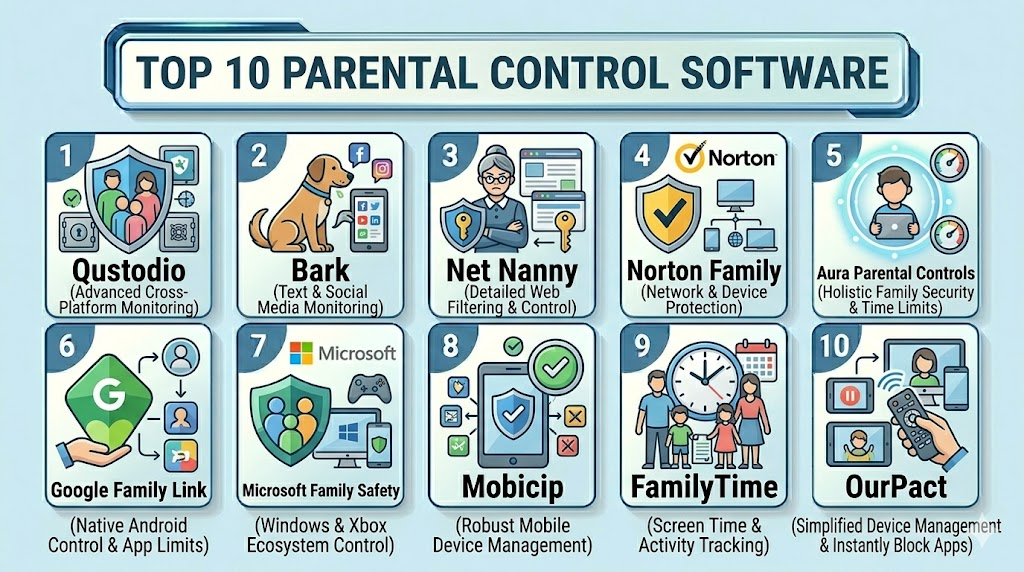
Top 10 Parental Control Software Tools
1- Qustodio
Short description: Qustodio is a full-featured parental control platform for families that need screen-time limits, web filtering, app controls, activity reports, and location tools across multiple device types. It is best for parents who want a balanced mix of monitoring, filtering, and easy family management.
Key Features
- Web filtering and category-based blocking
- Screen-time limits and device schedules
- App blocking and app activity monitoring
- Location tracking and geofencing features
- Activity reports and parent dashboard
- AI-powered alerts and risk detection features may vary by plan
- Support across major device platforms with feature differences
Pros
- Strong overall feature coverage for families
- Easy dashboard for managing children and devices
- Good fit for mixed-device households
Cons
- Advanced features may require higher-tier plans
- iOS restrictions can limit some controls compared with Android
- Social media monitoring depth may vary by platform and plan
Platforms / Deployment
Web / Windows / macOS / iOS / Android / ChromeOS / Kindle support may vary
Cloud
Security & Compliance
Specific controls should be validated directly. MFA, encryption, account protection, audit logs, RBAC, SOC 2, ISO 27001, GDPR, COPPA-related practices, and data retention details: Not publicly stated for all items.
Integrations & Ecosystem
Qustodio works well for parents who want one dashboard for daily device control and digital safety visibility. It fits families that need practical limits across apps, browsing, location, and activity.
- Parent dashboard
- Mobile child apps
- Desktop monitoring tools
- Web filtering engine
- Location and geofencing workflows
- Activity reports and alerts
Support & Community
Qustodio provides help resources, support options, and family safety guidance. Buyers should review device limits, plan differences, platform restrictions, and how controls work on each child’s device.
2- Bark
Short description: Bark focuses on online safety alerts for social media, text messages, email, photos, and web activity depending on device and connection support. It is best for parents who care most about risk detection rather than only screen-time blocking.
Key Features
- Social media and messaging monitoring
- Alerts for cyberbullying, self-harm, violence, and explicit content
- Screen-time management tools
- Web filtering and content blocking
- Location check-ins and location alerts
- Parent dashboard and risk notifications
- Support for many social and communication platforms, with limits by device
Pros
- Strong for detecting risky conversations and online safety concerns
- Encourages alert-based parenting instead of constant manual checking
- Useful for teens active on social platforms
Cons
- Monitoring depth varies by platform and device type
- Less focused on strict device control than some competitors
- Setup can require account connections and parent guidance
Platforms / Deployment
Web / iOS / Android / ChromeOS / Amazon Fire / Desktop support may vary
Cloud
Security & Compliance
Specific controls should be validated directly. MFA, encryption, data handling, audit logs, RBAC, SOC 2, ISO 27001, GDPR, COPPA-related practices, and data retention: Not publicly stated for all items.
Integrations & Ecosystem
Bark is strongest for families that want alerts about concerning online activity across communication channels. It is especially relevant for parents of tweens and teens.
- Social media monitoring
- Text and email alert workflows
- Web filtering
- Screen-time rules
- Location alerts
- Parent notifications
Support & Community
Bark provides support resources and online safety education. Parents should review supported platforms, connection requirements, device limitations, and alert settings before using it.
3- Net Nanny
Short description: Net Nanny is a parental control app known for web filtering, screen-time management, app blocking, and real-time content controls. It is best for parents who want strong internet filtering and flexible device rules.
Key Features
- Real-time web filtering
- Screen-time schedules and limits
- App blocking and usage visibility
- Parent dashboard
- Location tracking features may vary
- Alerts and activity summaries
- Cross-device family management
Pros
- Strong content filtering focus
- Good for parents who want safer web browsing
- Useful for households needing app and screen-time control
Cons
- Feature availability may vary by device
- Social media monitoring may be less broad than alert-focused tools
- Some users may need time to tune filters properly
Platforms / Deployment
Web / Windows / macOS / iOS / Android
Cloud
Security & Compliance
Specific controls should be validated directly. MFA, encryption, account protection, audit logs, RBAC, SOC 2, ISO 27001, GDPR, COPPA-related practices, and data retention: Not publicly stated for all items.
Integrations & Ecosystem
Net Nanny is useful for families that prioritize real-time content filtering and screen management. It works well when parents need to reduce exposure to harmful websites and online content.
- Web filtering
- App management
- Screen-time scheduling
- Parent dashboard
- Activity reporting
- Location features depending on plan
Support & Community
Net Nanny provides support resources and setup guidance. Buyers should validate device coverage, browser filtering behavior, plan limits, and support availability.
4- Norton Family
Short description: Norton Family is parental control software from Norton, focused on web supervision, school-time controls, search monitoring, video supervision, and time limits. It is best for families already using Norton security products or households focused on Windows and Android controls.
Key Features
- Web supervision and content filtering
- Screen-time schedules and limits
- School-time mode for learning focus
- Search and video supervision features
- Location tracking features may vary
- Parent portal and activity reporting
- Integration with broader Norton family security ecosystem
Pros
- Good fit for families already using Norton products
- Useful school-time and web supervision features
- Strong for Windows and Android households
Cons
- iOS feature depth may be more limited
- Social media monitoring is not the main strength
- Some features may depend on bundled plans
Platforms / Deployment
Web / Windows / Android / iOS support may vary
Cloud
Security & Compliance
Specific controls should be validated directly. MFA, encryption, account protection, audit logs, RBAC, SOC 2, ISO 27001, GDPR, COPPA-related practices, and data handling: Not publicly stated for all items.
Integrations & Ecosystem
Norton Family fits families that want parental controls as part of a broader consumer cybersecurity setup. It is especially practical when parents already use Norton security services.
- Norton account ecosystem
- Web supervision
- Time supervision
- School-time controls
- Search monitoring
- Location workflows depending on device
Support & Community
Norton provides documentation and customer support through its broader product ecosystem. Buyers should review device compatibility, bundled plan details, and platform-specific limitations.
5- Aura Parental Controls
Short description: Aura offers parental control features as part of a broader family digital safety suite that may include identity protection, online safety, antivirus, and privacy tools. It is best for families that want parental controls bundled with wider digital protection.
Key Features
- Content filtering and screen-time controls
- App blocking and usage management
- Safe browsing tools
- Family cybersecurity features may vary by plan
- Identity protection features may vary
- Parent dashboard
- Multi-device household protection options
Pros
- Strong fit for families wanting broader digital safety
- Useful when identity protection and cybersecurity are also priorities
- Good option for parents seeking a family protection bundle
Cons
- May be more expensive than parental-control-only apps
- Some features may not be needed by every family
- Buyers should validate exact parental control depth before purchasing
Platforms / Deployment
Web / iOS / Android / Windows / macOS support may vary
Cloud
Security & Compliance
Specific controls should be validated directly. MFA, encryption, account protection, audit logs, RBAC, SOC 2, ISO 27001, GDPR, COPPA-related practices, and identity protection safeguards: Not publicly stated for all items.
Integrations & Ecosystem
Aura is useful for families that want parental controls plus broader household security. It fits parents who prefer one subscription for digital safety needs beyond screen time.
- Family safety dashboard
- Content filtering
- App controls
- Identity protection features depending on plan
- Antivirus or device security features depending on plan
- Privacy and protection tools
Support & Community
Aura provides support and customer resources across its digital safety suite. Buyers should compare parental control depth, device limits, identity features, and plan pricing.
6- Google Family Link
Short description: Google Family Link is a free parental control tool for managing children’s Google accounts, Android devices, Chromebook access, app approvals, screen time, and location. It is best for families using Android and Google ecosystems.
Key Features
- Google account supervision
- Android app approvals and restrictions
- Screen-time limits and bedtime schedules
- Location tracking for supported devices
- Chromebook supervision features
- Content settings for some Google services
- Free baseline parental controls
Pros
- Free and useful for Android families
- Integrated naturally with Google accounts and Chromebooks
- Good for app approvals and basic screen-time rules
Cons
- Less powerful than many paid parental control apps
- Feature depth outside Google ecosystem is limited
- Teen supervision and controls may depend on age and account settings
Platforms / Deployment
Web / Android / iOS parent app / ChromeOS
Cloud
Security & Compliance
Specific controls should be validated directly. Google account security, MFA, encryption, account protection, data retention, GDPR, COPPA-related practices, audit logs, and RBAC details: Not publicly stated for all items.
Integrations & Ecosystem
Google Family Link is best for households already using Android phones, Chromebooks, Google Play, and Google accounts.
- Google account supervision
- Google Play approvals
- Android device controls
- Chromebook controls
- Location features
- Screen-time rules
Support & Community
Google provides help documentation and account support resources. Parents should review age settings, device compatibility, Google account rules, and limitations compared with paid tools.
7- Microsoft Family Safety
Short description: Microsoft Family Safety helps families manage Windows PCs, Xbox usage, Microsoft accounts, screen time, web filtering, app limits, and location features. It is best for households using Windows, Microsoft Edge, Xbox, and Microsoft accounts.
Key Features
- Windows screen-time controls
- Xbox usage limits
- App and game controls
- Web and search filtering through Microsoft ecosystem
- Location sharing features may vary
- Family activity reports
- Microsoft account-based family dashboard
Pros
- Strong fit for Windows and Xbox households
- Free baseline controls are useful for many families
- Good for managing gaming and Microsoft ecosystem usage
Cons
- Best results depend on Microsoft ecosystem usage
- Browser filtering may be less effective outside supported browsers
- Not as broad as dedicated third-party parental control tools
Platforms / Deployment
Web / Windows / Xbox / Android / iOS support may vary
Cloud
Security & Compliance
Specific controls should be validated directly. Microsoft account security, MFA, encryption, account protection, GDPR, COPPA-related practices, audit logs, RBAC, and data handling: Not publicly stated for all items.
Integrations & Ecosystem
Microsoft Family Safety is useful for families managing Windows laptops, Xbox gaming, Microsoft accounts, and Edge browsing.
- Windows device controls
- Xbox activity management
- Microsoft account family dashboard
- App and game limits
- Web filtering through supported settings
- Location sharing features
Support & Community
Microsoft provides help documentation and account support resources. Buyers should test controls across browsers, devices, Xbox accounts, and child profiles before relying on it fully.
8- Mobicip
Short description: Mobicip is parental control software focused on screen-time management, web filtering, app blocking, activity reports, and location tracking. It is best for families that want a practical paid parental control tool with broad device support.
Key Features
- Web content filtering
- Screen-time schedules and limits
- App blocking and app monitoring
- Location tracking and geofencing features
- Activity reports and parent dashboard
- Family rules by child profile
- Cross-platform device support
Pros
- Good balance of controls and usability
- Useful for families with multiple device types
- Practical screen-time and app management features
Cons
- Social media monitoring may not be as deep as Bark
- Advanced features may vary by platform
- Parents may need setup time for accurate rules
Platforms / Deployment
Web / Windows / macOS / iOS / Android / ChromeOS support may vary
Cloud
Security & Compliance
Specific controls should be validated directly. MFA, encryption, account protection, audit logs, RBAC, SOC 2, ISO 27001, GDPR, COPPA-related practices, and data retention: Not publicly stated for all items.
Integrations & Ecosystem
Mobicip is suitable for parents who want filtering, schedules, app controls, and location visibility in one platform.
- Parent dashboard
- Child device apps
- Web filtering
- App blocking
- Location tools
- Screen-time rules
Support & Community
Mobicip provides documentation and support resources. Buyers should confirm platform coverage, device limits, filtering quality, and plan features before purchasing.
9- FamilyTime
Short description: FamilyTime is a parental control app focused on screen-time limits, app blocking, location tracking, geofencing, and family safety controls. It is best for parents who want strong location and device routine management.
Key Features
- Screen-time controls and schedules
- App blocking and app limits
- Location tracking and geofencing
- SOS and safety alert features may vary
- Activity reports
- Family dashboard
- Device usage monitoring
Pros
- Strong location and geofencing focus
- Useful for daily routines and safety alerts
- Good for families that need device and movement visibility
Cons
- Feature availability may vary by device platform
- Social media monitoring depth may be limited
- Interface and setup should be tested before committing
Platforms / Deployment
Web / iOS / Android support may vary
Cloud
Security & Compliance
Specific controls should be validated directly. MFA, encryption, account security, audit logs, RBAC, SOC 2, ISO 27001, GDPR, COPPA-related practices, and data retention: Not publicly stated for all items.
Integrations & Ecosystem
FamilyTime is useful for parents focused on location, schedules, app use, and family safety workflows.
- Geofencing
- Location tracking
- Screen-time rules
- App blocking
- SOS alerts depending on plan
- Parent dashboard
Support & Community
FamilyTime provides support resources and setup guidance. Parents should test location accuracy, app controls, device compatibility, and alert reliability.
10- OurPact
Short description: OurPact is a parental control app focused on app blocking, screen-time scheduling, location tracking, and family device management. It is best for families that want strong app control and structured device routines, especially for iOS-focused households.
Key Features
- App blocking and app rules
- Screen-time schedules
- Device pause and routine controls
- Location tracking and geofencing features
- Family locator tools
- Parent dashboard
- Child profile management
Pros
- Strong app blocking and schedule-based controls
- Useful for families managing routines and device breaks
- Good fit for households that want structured screen-time rules
Cons
- Setup may require extra steps on some devices
- Feature depth can vary based on platform restrictions
- Social content monitoring is not the main focus
Platforms / Deployment
Web / iOS / Android support may vary
Cloud
Security & Compliance
Specific controls should be validated directly. MFA, encryption, account protection, audit logs, RBAC, SOC 2, ISO 27001, GDPR, COPPA-related practices, and data retention: Not publicly stated for all items.
Integrations & Ecosystem
OurPact is useful for parents who want app-level control, device schedules, and location features.
- App blocking
- Screen-time schedules
- Device pause
- Location tracking
- Geofencing
- Parent and child apps
Support & Community
OurPact provides help resources and setup guides. Buyers should review installation requirements, iOS restrictions, Android feature depth, and support options before purchase.
Comparison Table
| Tool Name | Best For | Platform(s) Supported | Deployment | Standout Feature | Public Rating |
|---|---|---|---|---|---|
| Qustodio | Balanced family controls | Web / Windows / macOS / iOS / Android / ChromeOS varies | Cloud | Broad monitoring and screen-time controls | N/A |
| Bark | Social media and risk alerts | Web / iOS / Android / ChromeOS / Fire support varies | Cloud | AI-style alerts for risky online activity | N/A |
| Net Nanny | Web filtering and screen control | Web / Windows / macOS / iOS / Android | Cloud | Real-time content filtering | N/A |
| Norton Family | Windows and Android family safety | Web / Windows / Android / iOS varies | Cloud | School-time and web supervision | N/A |
| Aura Parental Controls | Family digital safety bundles | Web / iOS / Android / Windows / macOS varies | Cloud | Parental controls plus cybersecurity bundle | N/A |
| Google Family Link | Android and Chromebook families | Web / Android / iOS parent app / ChromeOS | Cloud | Free Google ecosystem supervision | N/A |
| Microsoft Family Safety | Windows and Xbox households | Web / Windows / Xbox / Android / iOS varies | Cloud | Microsoft account and gaming controls | N/A |
| Mobicip | Multi-device screen and web control | Web / Windows / macOS / iOS / Android / ChromeOS varies | Cloud | Practical filtering and app controls | N/A |
| FamilyTime | Location and family routines | Web / iOS / Android varies | Cloud | Geofencing and routine management | N/A |
| OurPact | App blocking and schedules | Web / iOS / Android varies | Cloud | Strong app blocking and device pause | N/A |
Evaluation & Scoring of Parental Control Software
| Tool Name | Core 25% | Ease 15% | Integrations 15% | Security 10% | Performance 10% | Support 10% | Value 15% | Weighted Total 0–10 |
|---|---|---|---|---|---|---|---|---|
| Qustodio | 9 | 8 | 8 | 8 | 8 | 8 | 8 | 8.25 |
| Bark | 9 | 8 | 8 | 8 | 8 | 8 | 7 | 8.10 |
| Net Nanny | 8 | 8 | 7 | 8 | 8 | 8 | 7 | 7.75 |
| Norton Family | 8 | 8 | 7 | 8 | 8 | 8 | 8 | 7.95 |
| Aura Parental Controls | 8 | 8 | 8 | 8 | 8 | 8 | 7 | 7.95 |
| Google Family Link | 7 | 9 | 8 | 8 | 8 | 7 | 10 | 8.05 |
| Microsoft Family Safety | 7 | 8 | 8 | 8 | 8 | 7 | 10 | 7.90 |
| Mobicip | 8 | 8 | 7 | 8 | 8 | 7 | 8 | 7.80 |
| FamilyTime | 8 | 7 | 7 | 7 | 8 | 7 | 7 | 7.40 |
| OurPact | 8 | 7 | 7 | 7 | 8 | 7 | 7 | 7.40 |
Which Parental Control Software Is Right for You?
Solo / Freelancer
For one-parent households or guardians managing one child’s device, ease of setup matters most. Google Family Link is practical for Android and Chromebook users, while Microsoft Family Safety is useful for Windows and Xbox households. If deeper filtering or alerts are needed, Qustodio, Bark, or Net Nanny are better choices.
SMB
For households with multiple children, shared devices, tablets, school laptops, and mixed ages, a broader tool is usually better. Qustodio, Norton Family, Mobicip, and Aura Parental Controls are practical options to evaluate. Parents should choose different rules for younger children and teenagers instead of applying one strict policy to everyone.
Mid-Market
For larger families, co-parenting households, or families with many devices, reporting, location tools, and multi-device dashboards become more important. Qustodio, Bark, Aura, Mobicip, and FamilyTime are worth evaluating. Buyers should check device limits, child profiles, geofencing, and how alerts are shared between guardians.
Enterprise
Parental control software is not usually enterprise software, but schools, libraries, and youth programs may need related safety controls. In those environments, dedicated education filtering, MDM, DNS filtering, and school device management tools may be more suitable. Consumer tools can help families, but organizations need stronger policy control, reporting, consent management, and compliance review.
Budget vs Premium
Budget-focused families should start with Google Family Link, Microsoft Family Safety, or free tiers from selected parental control apps. These can be enough for basic app approvals, screen-time limits, and family account supervision. Premium tools such as Qustodio, Bark, Net Nanny, Aura, and Mobicip are more useful when families need social alerts, advanced filtering, geofencing, or broader reporting.
Feature Depth vs Ease of Use
If ease of use matters most, built-in ecosystem tools like Google Family Link and Microsoft Family Safety are good starting points. If feature depth matters more, Qustodio, Bark, Net Nanny, and Mobicip offer broader controls. Parents should avoid choosing the most complex tool if they only need a simple bedtime schedule and app approval workflow.
Integrations & Scalability
Parents should check whether the software works on every device their child uses, including phones, tablets, desktops, browsers, Chromebooks, school devices, and gaming platforms. Device ecosystem matters because iOS, Android, Windows, and macOS allow different levels of control. Families should also check whether the tool supports multiple children, shared guardians, and device-specific rules.
Security & Compliance Needs
Parental control software collects sensitive child activity data, location data, app usage, browsing history, and sometimes message-related alerts. Buyers should review privacy policies, data retention, encryption, account protection, child data handling, and guardian access controls. Parents should also explain rules to children where age-appropriate so the tool supports safety without damaging trust.
Frequently Asked Questions
1. What is Parental Control Software?
Parental Control Software helps parents manage children’s device use, screen time, websites, apps, online activity, and sometimes location.
It can block unsafe content, limit distracting apps, send alerts, and provide activity reports.
Some tools focus on filtering, while others focus on social media safety or family location.
The goal is to support safer and healthier digital habits.
2. How much does parental control software cost?
Pricing depends on the tool, number of devices, number of children, premium features, and annual plan structure.
Built-in tools like Google Family Link and Microsoft Family Safety may provide free baseline controls.
Premium apps usually charge for advanced filtering, social alerts, geofencing, and detailed reporting.
Families should compare total cost against device coverage and needed features.
3. Which parental control software is best for beginners?
Beginners should choose a tool that is easy to install, simple to adjust, and clear in its reports.
Google Family Link is a good starting point for Android families, and Microsoft Family Safety works well for Microsoft households.
For broader controls, Qustodio, Net Nanny, and Mobicip are practical options.
Parents should test rules on one device before rolling them out everywhere.
4. Which tool is best for social media monitoring?
Bark is commonly evaluated for social media and message-related risk alerts.
It focuses on notifying parents about concerning content rather than showing every message.
This can help parents discuss cyberbullying, self-harm language, explicit content, or unsafe conversations.
Feature depth varies by platform, so parents should confirm supported apps and devices.
5. Can parental controls block inappropriate websites?
Yes, most parental control tools include content filtering for adult sites, violence, gambling, and other unsafe categories.
Tools like Qustodio, Net Nanny, Norton Family, Mobicip, and Aura offer web filtering features.
Filtering may work differently across browsers, apps, VPNs, and operating systems.
Parents should test filtering on the child’s actual device before relying on it fully.
6. Do parental control apps work on iPhone?
Many parental control apps support iPhone, but iOS restrictions may limit some monitoring and app control features.
Apple’s own Screen Time also provides built-in limits, app restrictions, and family controls.
Third-party tools may still help with location, reporting, filtering, or schedules depending on setup.
Parents should check iOS-specific limitations before buying a paid plan.
7. What common mistakes should parents avoid?
A common mistake is using parental control software secretly or too aggressively without explaining expectations.
Parents should also avoid relying only on software instead of teaching digital responsibility and online safety.
Another mistake is choosing a tool without checking device compatibility and feature limits.
The best approach combines rules, conversations, trust, and age-appropriate monitoring.
8. Can parental control software track location?
Yes, many tools include location tracking, location history, geofencing, or arrival and departure alerts.
This is useful for school, home, activities, and emergency awareness.
However, location accuracy depends on device settings, permissions, network connection, and platform restrictions.
Parents should use location tracking responsibly and explain it to children when appropriate.
9. What integrations should buyers check first?
Buyers should check support for iOS, Android, Windows, macOS, ChromeOS, Kindle, browsers, and gaming devices.
They should also test school devices, shared tablets, YouTube access, social apps, search engines, and app stores.
If the child uses multiple ecosystems, a cross-platform tool may be better than a built-in option.
Device compatibility is one of the most important buying factors.
10. What alternatives exist to parental control software?
Alternatives include built-in device controls, router filtering, DNS filtering, family agreements, browser safe search, school device policies, and direct supervision.
Families can also use offline routines, device-free zones, shared charging stations, and screen-time contracts.
Software works best when paired with trust-building and clear family rules.
The right approach depends on child age, device habits, risk level, and family values.
Conclusion
Parental Control Software helps families create safer, healthier, and more balanced digital routines by combining web filtering, screen-time controls, app limits, social risk alerts, activity reports, and location tools. The best choice depends on child age, device ecosystem, parenting style, privacy expectations, budget, and the level of monitoring needed. Qustodio is strong for balanced controls, Bark is useful for social media risk alerts, Net Nanny is strong for content filtering, Norton Family fits Windows and Android households, Aura works well for families wanting broader digital safety, Google Family Link and Microsoft Family Safety are practical free ecosystem tools, while Mobicip, FamilyTime, and OurPact fit families that need app control, screen-time schedules, and location features. The best next step is to shortlist two or three tools, test them on real child devices, review privacy settings, explain the rules clearly, and choose the option that supports both safety

Find Trusted Cardiac Hospitals
Compare heart hospitals by city and services — all in one place.
Explore Hospitals
This helped me understand that parental control tools are not just about restrictions—they can also encourage safer and more balanced technology use.