Introduction
Digital Safety Monitoring Tools help parents, schools, businesses, and community organizations monitor online activity, detect risky behavior, filter harmful content, and protect users from digital threats. These tools may track web usage, app activity, search behavior, social signals, screen time, cyberbullying indicators, self-harm signals, inappropriate content, phishing risks, and unsafe communication patterns. digital safety is more important because users spend more time across apps, websites, learning platforms, messaging channels, gaming spaces, and social communities. The challenge is no longer only blocking websites; organizations now need intelligent monitoring, privacy-aware alerts, AI-assisted detection, and responsible reporting.
Real-world use cases:
- Schools monitoring student devices for cyberbullying and self-harm risk
- Parents managing children’s screen time and app access
- Businesses protecting employees from unsafe web activity
- Libraries and public institutions filtering harmful content
- Community platforms detecting risky digital behavior patterns
What buyers should evaluate:
- Web filtering and app monitoring coverage
- AI-based risk detection and alert accuracy
- Screen time and usage management features
- Reporting dashboards and alert workflows
- Privacy controls and data minimization
- Device coverage across web, mobile, and desktop
- Integration with school, enterprise, or family systems
- Security controls such as encryption and role-based access
- Ease of deployment and ongoing administration
- Pricing model and support quality
Best for:
Digital Safety Monitoring Tools are best for schools, parents, child safety teams, public institutions, businesses, and community organizations that need to reduce exposure to harmful online content, risky communication, cyberbullying, unsafe apps, and digital wellbeing concerns.
Not ideal for:
These tools may not be necessary for very small private groups, adult-only teams with mature security policies, or organizations that only need basic antivirus or firewall protection. In those cases, endpoint security, DNS filtering, or simple device controls may be enough.
Key Trends in Digital Safety Monitoring Tools
- AI-assisted risk detection is becoming standard: Modern tools increasingly use AI to identify signals related to bullying, self-harm, explicit content, violence, predatory behavior, and unsafe communication patterns.
- Digital wellbeing is now part of safety: Buyers are looking beyond blocking harmful content and also tracking screen time, app overuse, unhealthy browsing patterns, and distraction risk.
- Privacy-aware monitoring is gaining importance: Schools, parents, and businesses must balance safety with privacy, especially when monitoring minors, students, or employee devices.
- Cross-platform visibility is a major requirement: Users move between web browsers, mobile apps, school devices, personal devices, and messaging platforms, so safety tools need broader coverage.
- Real-time alerting is replacing delayed reports: For urgent safety risks, delayed weekly reports are not enough. Teams need immediate alerts and escalation workflows.
- Cloud-based management is now preferred: Administrators want centralized dashboards that can manage many users, devices, policies, and alerts from one place.
- Integration with identity and device management is growing: Schools and businesses increasingly expect safety monitoring to connect with Google Workspace, Microsoft systems, MDM platforms, and directory tools.
- Human review remains important: AI can flag risks, but schools and families still need human judgment for sensitive cases involving emotional wellbeing, bullying, or safety threats.
- Remote and hybrid learning increased demand: Student safety now extends beyond campus networks, making at-home and off-network monitoring important for schools.
- Compliance and auditability are rising expectations: Organizations need logs, reports, policy evidence, and role-based access to support responsible monitoring practices.
How We Selected These Tools
- We selected tools that are widely recognized across digital safety, student safety, parental control, content filtering, and online risk monitoring.
- We considered tools that support real monitoring workflows instead of only basic blocking or antivirus protection.
- We evaluated feature completeness across web filtering, alerts, screen time control, social monitoring, device coverage, and reporting.
- We considered suitability for schools, families, public institutions, and organizations with different monitoring needs.
- We reviewed integration flexibility with school systems, identity platforms, device management tools, browsers, and operating systems.
- We prioritized tools that can help detect harmful digital behavior patterns, not only restrict access.
- We considered privacy and security expectations such as encryption, access control, admin roles, and responsible data handling.
- We avoided guessing public ratings, certifications, or compliance claims where details are not confidently known.
- We included a balanced mix of school-focused, parent-focused, and broader web safety monitoring platforms.
- We considered ease of deployment, ongoing administration, alert quality, and practical value for real-world users.
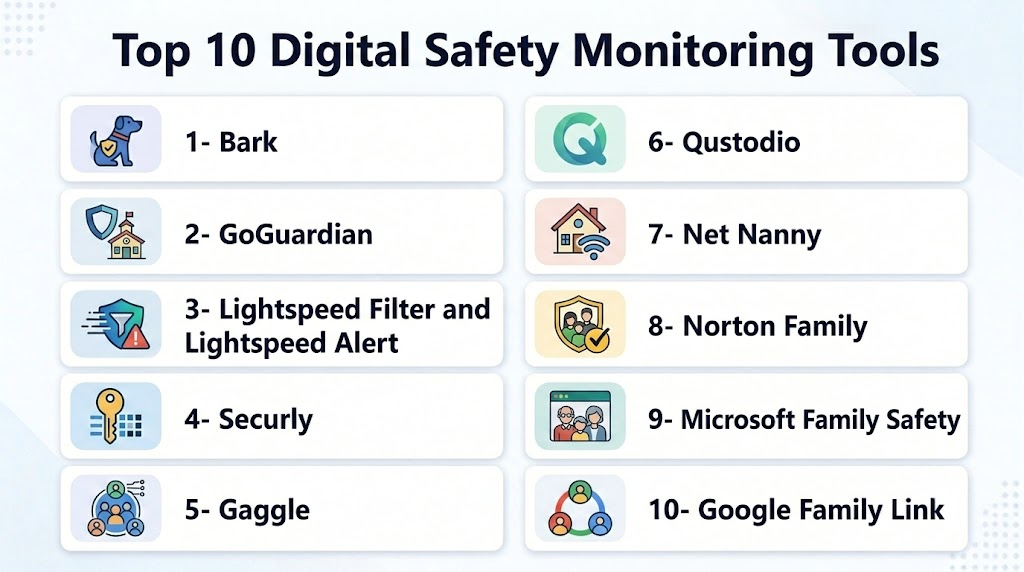
Top 10 Digital Safety Monitoring Tools
1- Bark
Short description: Bark is a digital safety monitoring tool focused on families and schools. It helps monitor online activity, detect potential risks, manage screen time, and alert guardians or administrators about concerning behavior.
Key Features
- Monitoring for messages, emails, and selected apps
- Alerts for cyberbullying, self-harm, explicit content, and risky behavior
- Screen time management
- Web filtering and blocking
- Location-related family safety features
- Parent and school dashboards
- AI-assisted risk detection
Pros
- Strong focus on child and student safety
- Helpful alert system for high-risk behavior
- Suitable for both families and schools
Cons
- App and platform coverage may vary
- Some monitoring requires device permissions and setup
- Privacy expectations must be clearly managed
Platforms / Deployment
- Web, iOS, Android
- Cloud
Security & Compliance
- Secure account access and monitoring workflows
- Data handling depends on selected setup and account type
- Specific certifications: Not publicly stated
Integrations & Ecosystem
Bark is commonly used across family devices and school environments where online safety monitoring is required.
- Mobile devices
- Email and messaging workflows
- School-managed environments
- Web filtering systems
- Parent and admin dashboards
Support & Community
Bark provides support resources for parents, schools, and administrators. Documentation and onboarding guidance are available, while support depth may vary by plan and deployment type.
2- GoGuardian
Short description: GoGuardian is a digital learning and student safety platform used by schools to manage student devices, filter web access, monitor classroom activity, and support student safety workflows.
Key Features
- Web filtering for school devices
- Student activity monitoring
- Classroom management tools
- Safety alerts for concerning behavior
- Admin policy controls
- Reporting dashboards
- Integration with education technology ecosystems
Pros
- Strong fit for schools and districts
- Combines filtering, classroom visibility, and safety monitoring
- Useful for managed student device environments
Cons
- Primarily education-focused
- May not suit general family or business use cases
- Requires thoughtful privacy and policy communication
Platforms / Deployment
- Web
- Cloud
- Works with school-managed devices and browsers
Security & Compliance
- Admin controls and role-based access features
- Education-focused privacy and security workflows
- Specific certifications: Not publicly stated
Integrations & Ecosystem
GoGuardian fits into school technology environments where device visibility, filtering, and student safety are connected.
- Google Workspace for Education environments
- School-managed browsers and devices
- Classroom management workflows
- Admin reporting systems
- Student safety escalation workflows
Support & Community
Support, documentation, and onboarding resources are available for schools and districts. Community knowledge is strong in the education technology sector.
3- Lightspeed Filter and Lightspeed Alert
Short description: Lightspeed provides school-focused web filtering, student safety monitoring, and alerting tools. It is designed for K-12 environments that need visibility across student browsing, devices, and potential safety risks.
Key Features
- Web filtering and policy management
- Student safety alerts
- Risk detection for concerning online behavior
- Device-level visibility
- Reporting and analytics dashboards
- School admin controls
- Cloud-based policy management
Pros
- Strong school safety focus
- Useful for off-campus and on-campus protection
- Combines filtering and alerts
Cons
- Best suited for education environments
- Setup can require district-level planning
- Not ideal for personal family monitoring alone
Platforms / Deployment
- Web
- Cloud
- School-managed device deployment
Security & Compliance
- Role-based administration features
- Secure monitoring and filtering workflows
- Specific certifications: Not publicly stated
Integrations & Ecosystem
Lightspeed tools are commonly used by schools that need filtering, reporting, and safety alerting across managed devices.
- Student devices
- School identity systems
- Web filtering policies
- Reporting dashboards
- Safety response workflows
Support & Community
Documentation, education support, and onboarding assistance are available. Support depth depends on school size, plan, and implementation scope.
4- Securly
Short description: Securly provides digital safety and web filtering tools for schools and families. It helps monitor student activity, manage web access, and alert administrators or guardians about risky online behavior.
Key Features
- Web filtering for student devices
- Safety alerts and monitoring
- Parent visibility tools
- Classroom and student activity insights
- Device and browser-based policy management
- Reporting dashboards
- Cloud-based administration
Pros
- Strong balance of school and parent visibility
- Useful for student safety monitoring
- Cloud-based management simplifies administration
Cons
- Primarily education-focused
- Alert accuracy depends on context and configuration
- Requires responsible privacy policies
Platforms / Deployment
- Web
- Cloud
- School-managed device and browser support
Security & Compliance
- Admin access controls
- Secure filtering and monitoring workflows
- Specific certifications: Not publicly stated
Integrations & Ecosystem
Securly is designed for school environments where web filtering, safety monitoring, and parent communication are connected.
- Student devices
- Parent portals
- School dashboards
- Web filtering systems
- Classroom monitoring workflows
Support & Community
Support and documentation are available for schools and families. Onboarding support may vary by product and deployment size.
5- Gaggle
Short description: Gaggle focuses on student safety monitoring for school communication and collaboration platforms. It helps identify concerning content and alerts designated school staff for review.
Key Features
- Student safety monitoring
- Email and document content review
- Alerts for self-harm, violence, bullying, and risky behavior
- Human review support
- School escalation workflows
- Reporting and incident tracking
- Integration with education productivity tools
Pros
- Strong student safety focus
- Human review can reduce missed context
- Useful for schools managing digital communication risk
Cons
- Education-specific use case
- May feel too specialized for general digital safety
- Requires clear response workflows from schools
Platforms / Deployment
- Web
- Cloud
Security & Compliance
- Secure monitoring workflows
- School administration controls
- Specific certifications: Not publicly stated
Integrations & Ecosystem
Gaggle is typically used in education environments where student communication monitoring is critical.
- School email systems
- Collaboration documents
- Student safety workflows
- Admin dashboards
- Escalation and review processes
Support & Community
Support is available for school teams and administrators. Implementation typically requires coordination with school technology and student support teams.
6- Qustodio
Short description: Qustodio is a parental control and digital wellbeing tool that helps families manage screen time, block inappropriate content, track usage, and monitor online activity across devices.
Key Features
- Screen time limits
- Web filtering and blocking
- App activity monitoring
- Location-related family safety features
- Usage reports
- Device-level controls
- Parent dashboard
Pros
- Strong family-focused usability
- Helpful for screen time and content control
- Supports multiple device types
Cons
- Not designed for enterprise or school district scale
- Some advanced monitoring depends on platform permissions
- Children may need clear communication around privacy
Platforms / Deployment
- Web, Windows, macOS, iOS, Android
- Cloud
Security & Compliance
- Secure account-based controls
- Privacy and data controls vary by product setup
- Specific certifications: Not publicly stated
Integrations & Ecosystem
Qustodio is mainly used by families and small groups that need device-level monitoring and digital wellbeing controls.
- Mobile devices
- Desktop devices
- Parent dashboards
- Web filtering workflows
- App monitoring features
Support & Community
Documentation and customer support are available. Community usage is strong among families and child digital safety users.
7- Net Nanny
Short description: Net Nanny is a parental control and web filtering tool that helps families block inappropriate content, manage screen time, and monitor digital behavior across devices.
Key Features
- Web filtering and content blocking
- Screen time scheduling
- App blocking
- Parent dashboard
- Alerts and activity reporting
- Device management
- Internet access controls
Pros
- Strong content filtering focus
- Useful for families with multiple devices
- Simple for parents to manage
Cons
- Less suitable for schools or enterprises
- Limited advanced AI risk analysis
- Device setup may require effort
Platforms / Deployment
- Windows, macOS, iOS, Android
- Cloud
Security & Compliance
- Secure parent account controls
- Specific certifications: Not publicly stated
Integrations & Ecosystem
Net Nanny is mainly used in family environments where parents need practical controls over browsing and device access.
- Home devices
- Parent dashboards
- App management
- Web filtering controls
- Screen time workflows
Support & Community
Support resources and documentation are available. Community awareness is strong in parental control and child safety categories.
8- Norton Family
Short description: Norton Family helps parents supervise children’s online activity, manage screen time, view browsing behavior, and encourage safer digital habits across supported devices.
Key Features
- Web supervision
- Screen time controls
- Search supervision
- Activity reports
- School time controls
- Parent dashboard
- Device management
Pros
- Easy for families to understand
- Strong brand familiarity
- Useful for basic digital safety monitoring
Cons
- Family-focused rather than school or enterprise-focused
- Advanced social monitoring may be limited
- Feature availability may vary by platform
Platforms / Deployment
- Windows, iOS, Android
- Cloud
Security & Compliance
- Secure account-based controls
- Part of a broader consumer security ecosystem
- Specific certifications: Not publicly stated
Integrations & Ecosystem
Norton Family fits best into family digital safety and parental supervision workflows.
- Child devices
- Parent dashboards
- Web activity reporting
- Screen time controls
- Search supervision
Support & Community
Documentation and consumer support are available. Norton’s broader security ecosystem provides familiarity for many families.
9- Microsoft Family Safety
Short description: Microsoft Family Safety helps families manage screen time, filter content, view activity reports, and support safer digital habits across Microsoft-connected devices and accounts.
Key Features
- Screen time limits
- Content filters
- Activity reports
- Family location features
- App and game limits
- Microsoft account integration
- Parent dashboard
Pros
- Good fit for Microsoft ecosystem users
- Simple family safety controls
- Useful for Windows and Xbox environments
Cons
- Best value inside Microsoft ecosystem
- Limited outside supported platforms
- Not built for school district or enterprise monitoring
Platforms / Deployment
- Windows, Xbox, iOS, Android
- Cloud
Security & Compliance
- Microsoft account security controls
- Family access controls
- Specific certifications: Not publicly stated for this use case
Integrations & Ecosystem
Microsoft Family Safety works best when families already use Microsoft accounts, Windows devices, and Xbox.
- Microsoft accounts
- Windows devices
- Xbox usage controls
- Mobile family app
- Family dashboards
Support & Community
Support is available through Microsoft consumer support resources. Documentation and help content are widely available for families.
10- Google Family Link
Short description: Google Family Link helps parents manage children’s Google accounts, screen time, app usage, and content access across Android and supported Google services.
Key Features
- Screen time management
- App approval and blocking
- Device bedtime controls
- Location-related family safety features
- Google account supervision
- Content setting management
- Parent mobile app
Pros
- Strong fit for Android and Google ecosystem users
- Free and accessible for many families
- Easy app control and screen time management
Cons
- Best suited to Google-connected environments
- Limited enterprise or school safety workflows
- Advanced content monitoring is limited
Platforms / Deployment
- Android, iOS
- Cloud
Security & Compliance
- Google account security controls
- Family account supervision features
- Specific certifications: Not publicly stated for this use case
Integrations & Ecosystem
Google Family Link is most useful for families using Android devices and Google accounts.
- Android devices
- Google accounts
- Parent mobile app
- App approval workflows
- Device activity controls
Support & Community
Google support documentation is available, and user familiarity is strong among Android families. Support is mostly self-service for consumer users.
Comparison Table
| Tool Name | Best For | Platform(s) Supported | Deployment | Standout Feature | Public Rating |
|---|---|---|---|---|---|
| Bark | Families and schools | Web, iOS, Android | Cloud | AI-assisted risk alerts | N/A |
| GoGuardian | K-12 schools | Web | Cloud | Student device visibility | N/A |
| Lightspeed Filter and Alert | School safety teams | Web | Cloud | Filtering plus student alerts | N/A |
| Securly | Schools and parent visibility | Web | Cloud | Student safety and web filtering | N/A |
| Gaggle | Student communication safety | Web | Cloud | Human-reviewed safety alerts | N/A |
| Qustodio | Family digital wellbeing | Web, Windows, macOS, iOS, Android | Cloud | Screen time and web monitoring | N/A |
| Net Nanny | Family content filtering | Windows, macOS, iOS, Android | Cloud | Web filtering controls | N/A |
| Norton Family | Family supervision | Windows, iOS, Android | Cloud | Activity and search supervision | N/A |
| Microsoft Family Safety | Microsoft ecosystem families | Windows, Xbox, iOS, Android | Cloud | Account-based family controls | N/A |
| Google Family Link | Android and Google families | Android, iOS | Cloud | Google account supervision | N/A |
Evaluation & Scoring of Digital Safety Monitoring Tools
| Tool Name | Core (25%) | Ease (15%) | Integrations (15%) | Security (10%) | Performance (10%) | Support (10%) | Value (15%) | Weighted Total |
|---|---|---|---|---|---|---|---|---|
| Bark | 9 | 8 | 8 | 8 | 8 | 8 | 8 | 8.3 |
| GoGuardian | 9 | 8 | 9 | 8 | 9 | 8 | 7 | 8.4 |
| Lightspeed Filter and Alert | 9 | 8 | 8 | 8 | 9 | 8 | 8 | 8.4 |
| Securly | 8 | 8 | 8 | 8 | 8 | 8 | 8 | 8.0 |
| Gaggle | 9 | 7 | 8 | 8 | 8 | 9 | 7 | 8.1 |
| Qustodio | 8 | 9 | 7 | 7 | 8 | 8 | 8 | 7.9 |
| Net Nanny | 7 | 8 | 6 | 7 | 8 | 7 | 8 | 7.3 |
| Norton Family | 7 | 8 | 6 | 7 | 8 | 8 | 8 | 7.5 |
| Microsoft Family Safety | 7 | 9 | 8 | 8 | 8 | 8 | 9 | 8.0 |
| Google Family Link | 7 | 9 | 8 | 8 | 8 | 8 | 10 | 8.1 |
Which Digital Safety Monitoring Tool Is Right for You?
Solo / Freelancer
Solo users, consultants, or individual creators usually do not need heavy digital safety monitoring unless they manage a child’s device or a small online community. Google Family Link, Microsoft Family Safety, Qustodio, or Norton Family may be enough for basic screen time, app control, and web activity supervision.
SMB
Small organizations, tutoring centers, coaching businesses, and small community groups should choose tools based on who they need to protect. For child-focused programs, Bark, Qustodio, or Securly-style solutions can help. For employee safety, DNS filtering or endpoint security tools may be a better alternative depending on risk.
Mid-Market
Mid-market schools, learning platforms, and youth-focused organizations should evaluate Bark, Securly, Lightspeed, and GoGuardian. These tools provide stronger reporting, centralized visibility, and alert workflows compared with basic parental control software. Buyers should test how well alerts match their real safety policies.
Enterprise
Large school districts and organizations with complex safety needs should consider GoGuardian, Lightspeed, Securly, and Gaggle. These tools are better suited for managed devices, large user groups, escalation processes, and policy-based oversight. Enterprise buyers should involve IT, legal, student support, and privacy stakeholders during evaluation.
Budget vs Premium
Budget-focused families can start with Google Family Link or Microsoft Family Safety, especially if they already use Google or Microsoft ecosystems. Premium buyers who need broader monitoring, alerts, and cross-device control may prefer Bark, Qustodio, Net Nanny, or Norton Family. Schools usually need dedicated platforms such as GoGuardian, Lightspeed, Securly, or Gaggle.
Feature Depth vs Ease of Use
For ease of use, Google Family Link, Microsoft Family Safety, and Norton Family are practical starting points. For deeper monitoring, Bark, GoGuardian, Lightspeed, and Gaggle provide stronger alerting and safety workflows. Buyers should avoid over-monitoring when simpler controls are enough.
Integrations & Scalability
Schools and districts should prioritize tools that integrate with student devices, identity systems, learning platforms, and admin dashboards. Families should prioritize device coverage and app compatibility. Large organizations should test deployment, policy updates, reporting exports, and user management before rollout.
Security & Compliance Needs
Digital safety monitoring involves sensitive data, especially when children or students are involved. Buyers should review encryption, access controls, administrator permissions, data retention, parental visibility, and consent workflows. Compliance should be validated directly with vendors, especially in education, healthcare, or child-focused environments.
Frequently Asked Questions
1. What are Digital Safety Monitoring Tools?
Digital Safety Monitoring Tools help monitor online activity, filter harmful content, manage screen time, and alert parents or administrators about risky behavior. They are commonly used by families, schools, and youth-focused organizations. These tools help promote safer digital habits and reduce exposure to harmful online experiences.
2. Who uses Digital Safety Monitoring Tools?
Parents, schools, school districts, tutoring centers, libraries, and child-focused organizations use these tools. Some businesses also use related web safety tools to reduce risky browsing. The right tool depends on whether the goal is child safety, student safety, employee protection, or general content filtering.
3. Do these tools use AI?
Many modern digital safety tools use AI to detect risk signals such as cyberbullying, explicit content, self-harm language, violence, or unsafe communication. AI helps identify patterns faster than manual review. However, human review is still important for context, fairness, and sensitive response decisions.
4. Are Digital Safety Monitoring Tools safe for privacy?
They can support safety, but they also process sensitive user activity data. Buyers should review what data is collected, how long it is stored, who can access it, and how alerts are handled. Privacy-aware deployment is especially important when monitoring minors or students.
5. Are these tools only for children?
No, many tools are child-focused, but digital safety monitoring can also apply to schools, public institutions, online communities, and workplaces. However, tools designed for families may not be suitable for enterprise use. The use case should guide product selection.
6. Can these tools block harmful websites?
Yes, most digital safety monitoring tools include web filtering or content blocking features. They can block adult content, violence, gambling, unsafe search results, or distracting apps depending on configuration. Filtering accuracy depends on the platform, policies, and device setup.
7. Can schools use these tools for remote learning?
Yes, school-focused platforms can monitor student safety across managed devices and remote learning environments. This is useful when students learn outside campus networks. Schools should still communicate monitoring policies clearly to students, parents, and staff.
8. What is the biggest mistake when choosing a digital safety tool?
The biggest mistake is choosing a tool only for feature count without considering privacy, alert quality, and daily usability. A tool that sends too many false alerts can overwhelm families or schools. A pilot test helps validate whether the tool fits real workflows.
9. Are free tools enough?
Free tools such as Google Family Link or Microsoft Family Safety may be enough for basic family controls. However, schools and organizations usually need stronger reporting, policy management, alerts, and admin workflows. Free tools are useful starting points but may not cover advanced safety needs.
10. What are alternatives to Digital Safety Monitoring Tools?
Alternatives include built-in device controls, router-level filtering, DNS filtering, school firewalls, endpoint security tools, and manual supervision. These may work in limited situations, but dedicated monitoring tools provide deeper alerts, reporting, and policy control. The right alternative depends on risk level and user group.
Conclusion
Digital Safety Monitoring Tools are important for families, schools, and organizations that want to create safer online experiences without relying only on manual supervision. The best tool depends on who you are protecting, what devices are used, how much monitoring is appropriate, and what level of reporting or alerting is required. Families may prefer simple tools like Google Family Link, Microsoft Family Safety, Qustodio, or Bark, while schools and districts may need GoGuardian, Lightspeed, Securly, or Gaggle for centralized safety workflows. A smart next step is to shortlist 2–3 tools, test them with real devices and users, review privacy controls, validate alerts, and choose the platform that balances safety, usability, and trust.

Find Trusted Cardiac Hospitals
Compare heart hospitals by city and services — all in one place.
Explore Hospitals
Digital safety monitoring tools are most effective when they provide proactive protection instead of only responding to threats after they occur. By combining content monitoring, risk detection, alerts, and reporting features, these platforms help organizations create safer digital environments, improve oversight, and respond quickly to potential security or safety concerns.