Introduction
Remote Desktop Tools allow users to access and control another computer from a distance, as if sitting right in front of it. They provide a seamless way for IT teams, developers, and employees to work across devices and locations without physical presence. These tools are essential in modern hybrid workplaces where flexibility, speed, and security are priorities.In with hybrid and fully remote models becoming mainstream, Remote Desktop Tools are critical for business continuity, secure access, and IT efficiency. Companies rely on them for troubleshooting, secure file access, virtual desktop delivery, and supporting distributed teams.
Key use cases include:
- IT teams performing troubleshooting and maintenance remotely
- Developers accessing test servers and staging environments
- Managed Service Providers supporting client infrastructure
- Employees working from home or traveling without access to office devices
- Educational institutions providing virtual desktops to students and staff
When evaluating these tools, buyers should consider:
- Security and encryption protocols
- Ease of deployment and onboarding
- Cross-platform compatibility (Windows, macOS, Linux, mobile)
- Performance under low bandwidth conditions
- Access management and user permissions
- Integration with identity management and IT tools
- Compliance with industry standards
- Scalability for teams and enterprise environments
- Monitoring, logging, and auditing capabilities
- Pricing models and total cost of ownership
Best for: IT administrators, MSPs, enterprise support teams, developers, and distributed workforce organizations.
Not ideal for: Users seeking basic file sharing or occasional desktop access, where lightweight tools or cloud file systems may suffice.
Key Trends in Remote Desktop Tools
- Zero-trust integration: Ensuring every session is authenticated and encrypted.
- Browser-based access: Reducing client installation and enabling instant connections.
- AI-assisted support: Automated session guidance and anomaly detection.
- Cloud-native delivery: Simplifying scaling and reducing infrastructure management.
- Enhanced cross-platform support: Including mobile, Linux, and virtual environments.
- Integration with identity systems: SSO, MFA, and conditional access policies.
- Performance optimization: Low-latency streaming, adaptive compression, and multi-monitor support.
- Advanced session monitoring: Logging, session recording, and audit trails.
- Flexible licensing and subscription models: Pay-per-use or enterprise bundles.
- Automation-ready: APIs for workflow automation and remote orchestration.
How We Selected These Tools (Methodology)
- Market adoption and enterprise mindshare across industries
- Feature completeness covering remote access, unattended support, and management
- Reliability signals including performance under varied network conditions
- Security posture evaluation (encryption, MFA, RBAC, audit trails)
- Integration potential with ITSM, IAM, and monitoring ecosystems
- Fit for various segments: solo users, SMBs, mid-market, and enterprise
- Cross-platform and device support assessment
- Vendor support quality and community engagement
- Scalability and deployment flexibility (cloud, hybrid, on-prem)
- Balance between cost, value, and usability
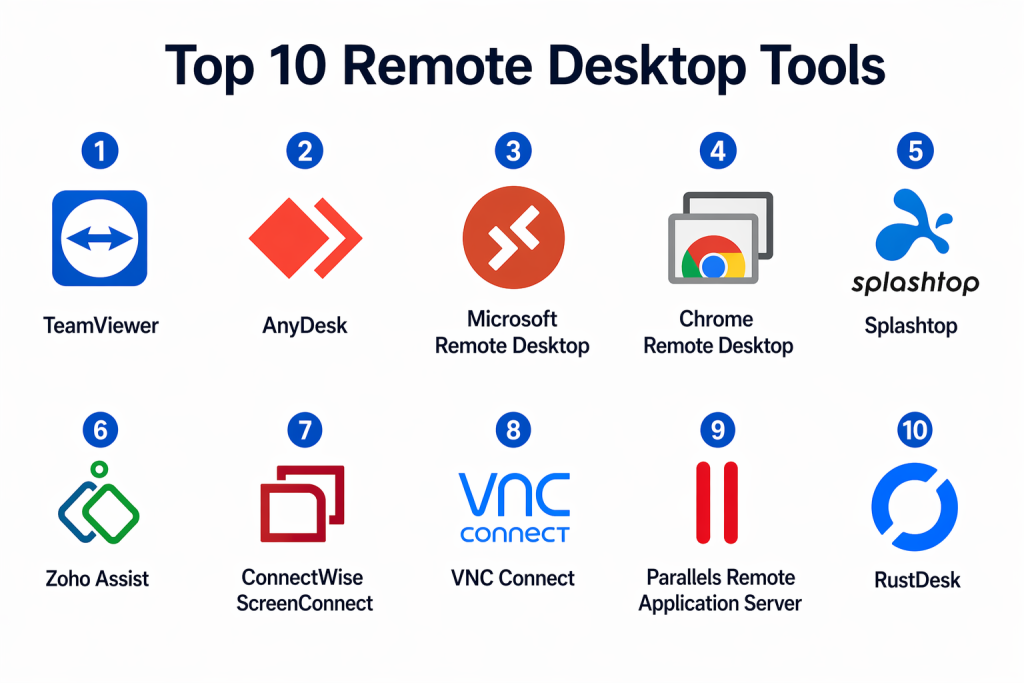
Top 10 Remote Desktop Tools
#1 — TeamViewer
Short description:
TeamViewer is a global leader in remote desktop solutions, ideal for IT support and enterprise management. It provides both attended and unattended access across multiple devices, allowing rapid troubleshooting and maintenance. Known for strong cross-platform compatibility, it supports desktop, mobile, and IoT devices.
Key Features
- Remote desktop control (attended & unattended)
- Multi-device support (Windows, macOS, Linux, mobile)
- File transfer and clipboard sharing
- Multi-session management
- Remote printing
- Device monitoring and management
- Session recording
Pros
- Very easy to deploy and use
- Extensive global adoption
- Cross-device reliability
Cons
- Higher pricing for large teams
- Internet-dependent for optimal performance
Platforms / Deployment
- Windows, macOS, Linux, iOS, Android
- Cloud-based
Security & Compliance
- AES encryption, MFA support, RBAC
- SOC 2, ISO 27001, GDPR compliance
Integrations & Ecosystem
- ITSM tools and monitoring platforms
- APIs for workflow automation
- SDK for custom solutions
Support & Community
Strong documentation, dedicated enterprise support, and active user community.
#2 — AnyDesk
Short description:
AnyDesk is designed for high-speed remote desktop connections and low-latency streaming. Its lightweight client and proprietary DeskRT codec make it ideal for support teams and remote employees needing fast, responsive access.
Key Features
- Low-latency remote desktop streaming
- Lightweight client installation
- File transfer and clipboard sync
- Unattended access
- Session recording
- Address book for devices
- Custom branding
Pros
- Extremely fast performance
- Low bandwidth usage
- User-friendly interface
Cons
- Enterprise governance features limited in lower tiers
- Some advanced features require premium plans
Platforms / Deployment
- Windows, macOS, Linux, iOS, Android
- Cloud/Hybrid
Security & Compliance
- TLS 1.2 encryption, RSA 2048 key exchange, ACLs
Integrations & Ecosystem
- API access for IT workflows
- Compatible with monitoring and management tools
Support & Community
Moderate documentation and growing enterprise adoption.
#3 — Microsoft Remote Desktop
Short description:
Microsoft Remote Desktop provides secure access to Windows machines and virtual desktops, deeply integrated with Windows and Azure Virtual Desktop. It is widely adopted in enterprise environments with strong scalability and centralized management.
Key Features
- Native Windows desktop access
- Azure Virtual Desktop integration
- Secure gateway and multi-session support
- Clipboard and drive redirection
- Remote app streaming
- Centralized management
Pros
- Excellent integration with Microsoft ecosystem
- Enterprise scalability
- Cost-effective for Windows-heavy environments
Cons
- Limited cross-platform flexibility
- Requires Windows administration knowledge
Platforms / Deployment
- Windows, macOS, iOS, Android
- Cloud/On-prem
Security & Compliance
- AD integration, MFA via Azure
- Encryption supported
Integrations & Ecosystem
- Microsoft 365, Azure, identity management systems
Support & Community
Comprehensive enterprise documentation and Microsoft support ecosystem.
#4 — Chrome Remote Desktop
Short description:
Chrome Remote Desktop is a simple browser-based solution providing quick remote access through the Chrome browser. Ideal for individual users and lightweight business scenarios, it requires minimal setup.
Key Features
- Browser-based remote access
- Cross-platform support
- Google account-based authentication
- Unattended access
- Lightweight architecture
- Free to use
Pros
- Extremely easy to use
- No client installation needed
- Cost-effective
Cons
- Limited enterprise features
- Minimal control and monitoring
Platforms / Deployment
- Windows, macOS, Linux
- Browser-based
Security & Compliance
- Google authentication, encrypted sessions
Integrations & Ecosystem
- Limited to Google ecosystem
- Minimal third-party integrations
Support & Community
Community-driven support with Google documentation.
#5 — Splashtop
Short description:
Splashtop offers high-definition remote desktop access with enterprise-grade security. It is widely used in education, SMB IT support, and MSP environments, delivering smooth performance even for media-intensive tasks.
Key Features
- High-definition streaming
- Multi-monitor support
- File transfer and remote printing
- Unattended access
- Session logging
- Device management
- Role-based access
Pros
- Excellent media performance
- Scalable for SMBs and mid-market
- Cost-effective
Cons
- Interface slightly less modern
- Advanced enterprise features require premium plans
Platforms / Deployment
- Windows, macOS, Linux, iOS, Android
- Cloud + on-prem
Security & Compliance
- TLS and AES encryption, MFA support
Integrations & Ecosystem
- ITSM tools, monitoring platforms, API integration
Support & Community
Strong documentation and enterprise support options.
#6 — Zoho Assist
Short description:
Zoho Assist provides cloud-based remote support and unattended access, integrating with the broader Zoho ecosystem. Its browser-based interface makes it convenient for SMBs and IT help desks.
Key Features
- Remote support via browser
- Unattended access
- File transfer and multi-monitor navigation
- Session recording
- Technician dashboard
- Custom branding
Pros
- Easy SaaS deployment
- Strong Zoho integration
- Affordable for SMBs
Cons
- Limited enterprise customization
- Performance depends on browser
Platforms / Deployment
- Web, Windows, macOS, Linux, iOS, Android
- Cloud-based
Security & Compliance
- SSL encryption, MFA support
Integrations & Ecosystem
- Zoho CRM, Desk, APIs for ITSM
Support & Community
Good documentation and support within Zoho ecosystem.
#7 — ConnectWise ScreenConnect
Short description:
ConnectWise ScreenConnect is a robust remote support solution for MSPs and enterprise IT teams. It emphasizes customization, administrative control, and rapid remote session deployment.
Key Features
- Fast remote session initiation
- Unattended access
- Session recording
- Custom branding
- Advanced access control
- Multi-session handling
- Script execution
Pros
- Highly customizable
- MSP-focused
- Reliable sessions
Cons
- Steeper learning curve
- Premium pricing
Platforms / Deployment
- Windows, macOS, Linux
- Cloud + self-hosted
Security & Compliance
- Encryption, role-based access, audit logs
Integrations & Ecosystem
- PSA and ITSM tools, API automation
Support & Community
Strong MSP-oriented support and community.
#8 — VNC Connect
Short description:
VNC Connect, based on the VNC protocol, delivers secure cross-platform remote desktop access for enterprise and personal users. It is lightweight and flexible for legacy and modern systems.
Key Features
- Cross-platform access
- File transfer and chat
- Session encryption
- Device access control
- Cloud and direct connections
- Multi-user support
Pros
- Lightweight and flexible
- Strong cross-platform support
- Reliable for legacy systems
Cons
- Less modern interface
- Performance depends on network quality
Platforms / Deployment
- Windows, macOS, Linux
- Cloud + self-hosted
Security & Compliance
- End-to-end encryption, authentication controls
Integrations & Ecosystem
- API support, IT infrastructure tools
Support & Community
Established community and stable enterprise support.
#9 — Parallels Remote Application Server
Short description:
Parallels RAS focuses on enterprise remote desktop and application delivery. It enables centralized access management and virtual application publishing for large-scale deployments.
Key Features
- Remote app publishing
- Virtual desktop infrastructure support
- Load balancing
- Centralized management
- Multi-device access
- High availability
- Secure gateway access
Pros
- Strong virtualization support
- Enterprise scalability
- Centralized IT control
Cons
- Complex setup
- Premium enterprise pricing
Platforms / Deployment
- Windows, macOS, Linux, mobile
- Hybrid, on-prem
Security & Compliance
- MFA, encryption, identity integration
Integrations & Ecosystem
- VMware, Azure, Citrix ecosystems
Support & Community
Enterprise-grade support services.
#10 — RustDesk
Short description:
RustDesk is an open-source, self-hosted remote desktop solution providing full control and privacy. It is popular among developers and security-conscious organizations seeking a customizable alternative to commercial tools.
Key Features
- Self-hosted remote desktop
- Open-source architecture
- Cross-platform support
- File transfer
- Encrypted sessions
- Address book management
- Custom relay servers
Pros
- Complete control over data
- Open-source flexibility
- Lightweight and modern
Cons
- Technical setup required
- Limited enterprise support
Platforms / Deployment
- Windows, macOS, Linux, iOS, Android
- Self-hosted or cloud
Security & Compliance
- End-to-end encryption
- Self-managed security
- Compliance depends on deployment
Integrations & Ecosystem
- API support, custom infrastructure integration
Support & Community
Strong open-source community.
Comparison Table (Top 10)
| Tool | Best For | Platforms Supported | Deployment | Standout Feature | Public Rating |
|---|---|---|---|---|---|
| TeamViewer | Enterprise IT support | All major OS + mobile | Cloud | Ease of use | N/A |
| AnyDesk | Fast remote sessions | All major OS + mobile | Cloud/Hybrid | Low latency | N/A |
| Microsoft Remote Desktop | Windows enterprise | Windows + mobile | Cloud/On-prem | Azure integration | N/A |
| Chrome Remote Desktop | Basic access | Browser-based | Cloud | Simplicity | N/A |
| Splashtop | SMB + education | All major OS | Cloud/On-prem | High-performance streaming | N/A |
| Zoho Assist | SMB support teams | All major OS | Cloud | Zoho ecosystem | N/A |
| ScreenConnect | MSPs | All major OS | Cloud/Self-hosted | Customization | N/A |
| VNC Connect | Legacy systems | All major OS | Cloud/Self-hosted | Protocol flexibility | N/A |
| Parallels RAS | Enterprise virtualization | Enterprise OS stack | Hybrid | App delivery | N/A |
| RustDesk | Developers | All major OS | Self-hosted | Open-source control | N/A |
Evaluation & Scoring of Remote Desktop Tools
| Tool | Core (25%) | Ease (15%) | Integrations (15%) | Security (10%) | Performance (10%) | Support (10%) | Value (15%) | Total |
|---|---|---|---|---|---|---|---|---|
| TeamViewer | 9 | 9 | 9 | 9 | 9 | 9 | 7 | 8.8 |
| AnyDesk | 9 | 9 | 7 | 8 | 10 | 8 | 8 | 8.7 |
| Microsoft Remote Desktop | 8 | 7 | 9 | 9 | 8 | 9 | 9 | 8.5 |
| Chrome Remote Desktop | 6 | 10 | 5 | 7 | 7 | 7 | 10 | 7.2 |
| Splashtop | 8 | 8 | 7 | 8 | 9 | 8 | 8 | 8.2 |
| Zoho Assist | 8 | 9 | 8 | 8 | 8 | 8 | 8 | 8.3 |
| ScreenConnect | 9 | 7 | 9 | 9 | 9 | 9 | 7 | 8.6 |
| VNC Connect | 7 | 8 | 7 | 8 | 7 | 7 | 8 | 7.6 |
| Parallels RAS | 9 | 6 | 9 | 9 | 9 | 9 | 6 | 8.1 |
| RustDesk | 7 | 7 | 6 | 8 | 8 | 6 | 10 | 7.5 |
Interpretation:
Scores compare tools across features, usability, security, integration, and value. Higher scores indicate more comprehensive solutions; lower scores may suit niche or lightweight use cases.
Which Remote Desktop Tools Tool Is Right for You?
Solo / Freelancer
Chrome Remote Desktop, AnyDesk, RustDesk – lightweight, easy-to-use, cost-effective.
SMB
Zoho Assist, Splashtop, AnyDesk – balance of performance, affordability, and support.
Mid-Market
TeamViewer, ScreenConnect, Splashtop – enterprise features at manageable scale.
Enterprise
Microsoft Remote Desktop, Parallels RAS, TeamViewer – high scalability, centralized control, compliance.
Budget vs Premium
Budget: Chrome Remote Desktop, RustDesk
Premium: TeamViewer, Parallels RAS
Feature Depth vs Ease of Use
Quick setup: Chrome Remote Desktop, AnyDesk
Advanced control: ScreenConnect, Parallels RAS
Integrations & Scalability
Strong: TeamViewer, Microsoft Remote Desktop, ScreenConnect
Moderate: AnyDesk, Zoho Assist
Security & Compliance Needs
Enterprise-grade: TeamViewer, Parallels RAS
Self-managed/open-source: RustDesk
Frequently Asked Questions (FAQs)
1. What is a remote desktop tool?
It allows controlling a computer from another location.
Used for IT support, remote work, or server management.
Eliminates the need for physical access.
2. Are remote desktops secure?
Most use encryption, MFA, and access controls.
Enterprise solutions include audit logs.
Security depends on configuration and vendor.
3. Can I use these on mobile devices?
Yes, most tools support Android/iOS apps.
Mobile may have limited functionality.
4. What is unattended access?
Allows accessing devices without user approval.
Useful for servers and managed IT maintenance.
5. Do I need to install software?
Some are browser-based (Chrome Remote Desktop), others require clients.
6. Can multiple users access the same machine?
Yes, depending on licensing and configuration.
Enterprise tools allow multi-session management.
7. How is remote desktop different from VPN?
VPN provides network access, remote desktop gives device control.
Often used together for security.
8. Are open-source tools reliable?
Yes, RustDesk offers self-hosted, flexible control.
Ideal for developers or privacy-focused organizations.
9. What are common risks?
Unauthorized access, weak passwords, misconfiguration.
Use MFA and logging to mitigate risks.
10. Which tool should I pick?
Depends on context: TeamViewer for enterprise, RustDesk for open-source flexibility, AnyDesk for speed.
Conclusion
Remote Desktop Tools have become foundational for IT operations, remote work, and enterprise continuity. The “best” solution depends on the organization’s size, IT complexity, and security needs. Lightweight tools serve freelancers and small teams effectively, while enterprise solutions offer extensive control, compliance, and scalability.Selecting a remote desktop tool requires evaluating real-world requirements such as platform diversity, integrations, performance under low bandwidth, and auditing needs. Conducting a pilot with shortlisted tools can ensure the right fit. Ultimately, these tools enable seamless, secure, and efficient remote operations, empowering organizations to maintain productivity in any location.

Find Trusted Cardiac Hospitals
Compare heart hospitals by city and services — all in one place.
Explore Hospitals
Remote desktop tools also need to work well when network conditions are poor. High latency or an unstable connection can make even simple tasks frustrating for users. Testing performance on slower networks can help teams understand where the tool may struggle in real-world use.