Introduction
Screen Capture Tools are applications that allow users to record their computer screens, capture video tutorials, or create professional demos. These tools are essential for educators, content creators, software trainers, and marketing teams, helping produce high-quality instructional content and share insights efficiently. the demand for reliable, cross-platform, and AI-assisted screen recording solutions has grown as remote learning, online presentations, and digital collaboration expand globally.
Real-world use cases include creating software tutorials, recording webinars, producing online courses, demonstrating product features, and capturing gameplay or live events. Buyers should evaluate video and audio quality, platform support, recording modes, editing capabilities, AI enhancements, collaboration features, export options, integration, scalability, and customer support.
Best for: Educators, trainers, content creators, and corporate teams who require high-quality, reliable, and versatile screen recording capabilities.
Not ideal for: Users who only need basic single-screen captures or rely on built-in OS recording tools.
Key Trends in Screen Capture Tools
- Integration of AI-assisted editing and noise reduction
- Cloud-based recording and sharing for remote collaboration
- Multi-platform support including Windows, macOS, iOS, and Android
- High-resolution recording and low-latency streaming
- Automatic captions and transcription for accessibility
- LMS and online course integration
- Collaboration features for team projects
- Subscription and flexible pricing models
- Enhanced security with encryption and access controls
- Performance optimization for smooth recording
How We Selected These Tools (Methodology)
- Evaluated market adoption and professional usage
- Reviewed feature completeness, including editing, audio capture, and export formats
- Assessed performance and reliability during long recordings
- Checked security and compliance signals
- Verified integration with cloud, LMS, and social media platforms
- Evaluated customer fit for solo creators, SMBs, and enterprise teams
- Reviewed cross-platform compatibility
- Assessed scalability for multiple projects
- Checked support resources and community engagement
- Balanced pricing and value for features
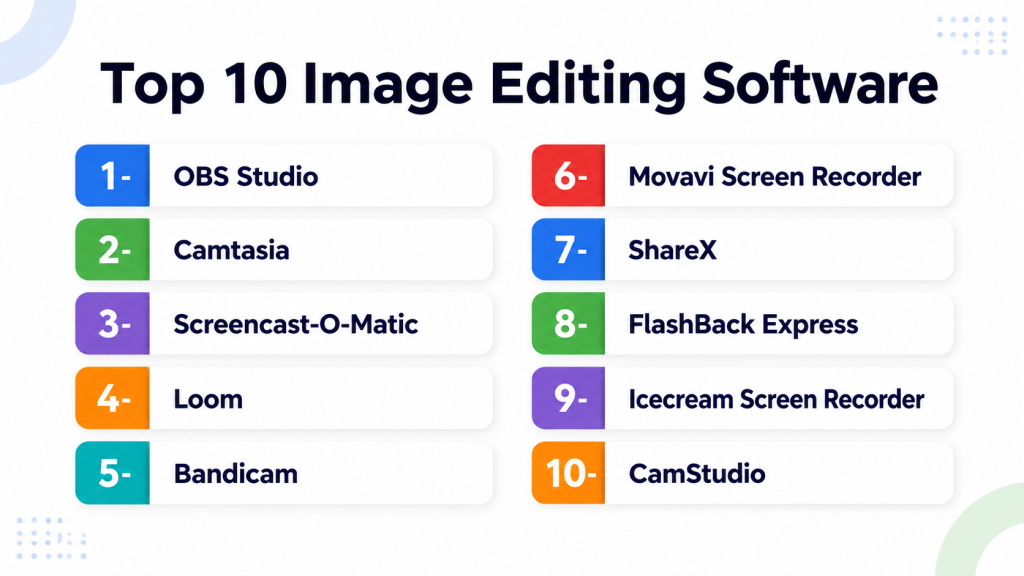
Top 10 Screen Capture Tools
1- OBS Studio
Key Features
- Multi-source screen and webcam capture
- Audio mixing with filters
- Plugin support and scripting
- Real-time transitions and overlays
- NDI support for network video
Pros
- Free and open-source
- Highly customizable
- Widely used by professionals
Cons
- Steep learning curve
- Limited built-in editing
Platforms / Deployment
- Windows, macOS, Linux / Desktop
Security & Compliance
- Not publicly stated
Integrations & Ecosystem
- Twitch, YouTube, Facebook Live
- Plugin marketplace
- OBS WebSocket API
Support & Community
- Community forums, tutorials, and documentation
2- Camtasia
Key Features
- Screen, webcam, and audio capture
- Built-in video editing
- Annotations, transitions, and effects
- Multi-track timeline
- Templates and stock media
Pros
- All-in-one recording and editing
- Easy for professional tutorials
- Strong support resources
Cons
- Paid license required
- Resource-intensive
Platforms / Deployment
- Windows, macOS / Desktop
Security & Compliance
- Not publicly stated
Integrations & Ecosystem
- LMS integration
- YouTube, Vimeo export
- PowerPoint integration
Support & Community
- Tutorials, forums, and vendor support
3- Screencast-O-Matic
Key Features
- Quick screen and webcam recording
- Editing tools with captions and transitions
- Cloud hosting and sharing
- Scheduled recording
- Automated captions
Pros
- Beginner-friendly
- Cloud-based sharing
- Affordable plans
Cons
- Free version watermarks videos
- Advanced editing limited
Platforms / Deployment
- Windows, macOS, iOS, Android / Cloud & Desktop
Security & Compliance
- Not publicly stated
Integrations & Ecosystem
- YouTube, Google Drive, Dropbox
- LMS integration
- Stock media
Support & Community
- Tutorials and online help
4- Loom
Key Features
- Screen and webcam capture
- Cloud hosting and sharing
- Real-time comments and reactions
- Browser and desktop apps
- Integration with Slack and Gmail
Pros
- Fast setup and cloud sharing
- Excellent for remote teams
- Cross-platform
Cons
- Limited editing
- Storage restrictions on free plan
Platforms / Deployment
- Web, Windows, macOS, iOS / Cloud
Security & Compliance
- Not publicly stated
Integrations & Ecosystem
- Slack, Gmail, Google Drive
- Browser capture
Support & Community
- Tutorials and knowledge base
5- Bandicam
Key Features
- High-performance screen and game capture
- Real-time drawing and annotations
- High FPS recording
- Webcam overlay
- Compressed output files
Pros
- Optimized for gaming
- Lightweight
- High-quality capture
Cons
- Windows only
- Minimal editing tools
Platforms / Deployment
- Windows / Desktop
Security & Compliance
- Not publicly stated
Integrations & Ecosystem
- Compatible with external editors
Support & Community
- Documentation and guides
6- Movavi Screen Recorder
Key Features
- Screen, audio, and webcam capture
- Basic editing with trimming and effects
- Scheduled recordings
- Export to multiple formats
- Intuitive interface
Pros
- Beginner-friendly
- Multi-format export
- Low system impact
Cons
- Paid license for full features
- Limited advanced editing
Platforms / Deployment
- Windows, macOS / Desktop
Security & Compliance
- Not publicly stated
Integrations & Ecosystem
- YouTube, Google Drive export
Support & Community
- Tutorials and support
7- ShareX
Key Features
- Free and open-source screen capture
- Multiple capture modes
- Advanced file sharing
- Annotations and workflow automation
- GIF and video recording
Pros
- Free and highly customizable
- Automation support
- Lightweight
Cons
- Complex interface
- Limited built-in editing
Platforms / Deployment
- Windows / Desktop
Security & Compliance
- Not publicly stated
Integrations & Ecosystem
- Cloud storage integrations
- Plugin support
Support & Community
- Community forums and GitHub
8- FlashBack Express
Key Features
- Screen, webcam, and audio recording
- Basic editing and annotations
- Scheduled recording
- Multiple output formats
- Simple interface
Pros
- Beginner-friendly
- Free version available
- Quick editing
Cons
- Limited advanced features
- Watermark on free version
Platforms / Deployment
- Windows / Desktop
Security & Compliance
- Not publicly stated
Integrations & Ecosystem
- YouTube export
- LMS support
Support & Community
- Tutorials and forums
9- Icecream Screen Recorder
Key Features
- Screen, audio, and webcam capture
- Annotations and drawing tools
- Scheduled recording
- Multiple output formats
- Screenshot capture
Pros
- Lightweight and intuitive
- Flexible output formats
- Quick for tutorials
Cons
- Limited editing tools
- Paid version required for full features
Platforms / Deployment
- Windows, macOS / Desktop
Security & Compliance
- Not publicly stated
Integrations & Ecosystem
- YouTube and cloud exports
Support & Community
- Tutorials and documentation
10- CamStudio
Key Features
- Open-source screen capture
- AVI and SWF output
- Basic annotations
- Lightweight and simple
- Easy setup
Pros
- Free and low-resource
- Easy to use
- Quick setup
Cons
- Windows only
- Limited features and editing
Platforms / Deployment
- Windows / Desktop
Security & Compliance
- Not publicly stated
Integrations & Ecosystem
- External video editors
Support & Community
- Community forums and documentation
Comparison Table (Top 10)
| Tool Name | Best For | Platform(s) Supported | Deployment | Standout Feature | Public Rating |
|---|---|---|---|---|---|
| OBS Studio | Professional and free use | Windows, macOS, Linux | Desktop | Multi-source recording | N/A |
| Camtasia | Professional tutorials | Windows, macOS | Desktop | Built-in editing | N/A |
| Screencast-O-Matic | Quick recordings | Windows, macOS, iOS, Android | Cloud & Desktop | Cloud hosting | N/A |
| Loom | Remote teams | Web, Windows, macOS, iOS | Cloud | Instant sharing | N/A |
| Bandicam | Gaming and high-FPS capture | Windows | Desktop | High-performance capture | N/A |
| Movavi Screen Recorder | Beginner-friendly recordings | Windows, macOS | Desktop | Multi-format export | N/A |
| ShareX | Automation and customization | Windows | Desktop | Workflow automation | N/A |
| FlashBack Express | Educational or simple use | Windows | Desktop | Beginner-friendly interface | N/A |
| Icecream Screen Recorder | Quick tutorials | Windows, macOS | Desktop | Annotations and drawing tools | N/A |
| CamStudio | Free lightweight capture | Windows | Desktop | Simple setup | N/A |
Evaluation & Scoring
| Tool Name | Core | Ease | Integrations | Security | Performance | Support | Value | Weighted Total |
|---|---|---|---|---|---|---|---|---|
| OBS Studio | 9 | 7 | 8 | 7 | 8 | 7 | 10 | 8.0 |
| Camtasia | 8 | 8 | 7 | 7 | 8 | 8 | 7 | 7.7 |
| Screencast-O-Matic | 7 | 9 | 7 | 6 | 7 | 7 | 8 | 7.4 |
| Loom | 7 | 9 | 7 | 6 | 7 | 7 | 7 | 7.2 |
| Bandicam | 8 | 7 | 7 | 6 | 8 | 7 | 7 | 7.3 |
| Movavi Screen Recorder | 7 | 8 | 7 | 6 | 7 | 7 | 7 | 7.1 |
| ShareX | 9 | 6 | 8 | 6 | 8 | 7 | 10 | 8.0 |
| FlashBack Express | 7 | 8 | 6 | 6 | 7 | 7 | 7 | 7.0 |
| Icecream Screen Recorder | 7 | 8 | 6 | 6 | 7 | 7 | 7 | 6.9 |
| CamStudio | 6 | 7 | 6 | 6 | 6 | 6 | 10 | 6.8 |
Interpretation: Weighted totals provide a comparative assessment of features, ease of use, integration, performance, support, and value. Higher scores indicate broader suitability for professional and educational workflows.
Which Tool Is Right for You?
Solo / Freelancer
- Loom, ShareX, Screencast-O-Matic are ideal for simple, cost-effective recording.
SMB
- Movavi, Camtasia, FlashBack Express support integrated editing and cloud sharing.
Mid-Market
- Bandicam, Icecream Screen Recorder offer multi-source recording and annotations.
Enterprise
- OBS Studio, Camtasia scale for training, webinars, and large projects.
Budget vs Premium
- Budget: OBS Studio, CamStudio, ShareX
- Premium: Camtasia, Bandicam, Movavi
Feature Depth vs Ease of Use
- Feature-heavy: Camtasia, Bandicam, OBS Studio
- Ease of use: Loom, Screencast-O-Matic, FlashBack Express
Integrations & Scalability
- Enterprise solutions provide cloud export, LMS integration, and collaboration.
Security & Compliance Needs
- Enterprise users should select tools with encryption, access controls, and cloud backup options.
Frequently Asked Questions (FAQs)
1. Which tool is best for beginners?
Answer: Loom, Screencast-O-Matic, and FlashBack Express provide intuitive interfaces, easy setup, and quick recording.
2. Can I record webcam and screen together?
Answer: Most tools, including OBS Studio, Camtasia, and Loom, allow simultaneous webcam and screen capture.
3. Are these platforms cross-platform?
Answer: OBS Studio, Screencast-O-Matic, and Movavi work across multiple OSes; some are platform-specific.
4. Do these tools include editing capabilities?
Answer: Camtasia, Movavi, and FlashBack Express include editing for trimming, annotations, and transitions.
5. Can I capture high-resolution video?
Answer: OBS Studio, Bandicam, and Camtasia support 4K and high FPS recordings.
6. Are free options available?
Answer: OBS Studio, ShareX, and CamStudio are free and suitable for budget-conscious users.
7. Can recordings be shared online directly?
Answer: Yes, Loom, Screencast-O-Matic, and FlashBack Express allow cloud sharing and social media integration.
8. Can I schedule recordings?
Answer: Movavi, FlashBack Express, and Screencast-O-Matic support scheduled capture for automated workflows.
9. Do these tools integrate with LMS or cloud storage?
Answer: Many platforms offer export to YouTube, Google Drive, Dropbox, or LMS integration for team collaboration.
10. How difficult is the learning curve?
Answer: Beginner-friendly tools like Loom and Screencast-O-Matic are easy to use, while OBS Studio and Bandicam require more experience.
Conclusion
Choosing the right Screen Capture Tool depends on your requirements, workflow, and scale of content production. Beginners or solo creators may prefer Loom, Screencast-O-Matic, or FlashBack Express for simplicity and ease of use, while SMBs and mid-sized teams benefit from Camtasia, Movavi, or Bandicam for enhanced editing and cloud capabilities. Enterprises or professional teams should consider OBS Studio or ShareX for high customization, multi-source recording, and advanced integrations. A practical approach is to shortlist 2–3 tools, test them in real scenarios, and verify integration, editing, and sharing features before fully committing. This ensures that the selected platform meets both creative and operational needs, maximizing productivity and video quality.

Find Trusted Cardiac Hospitals
Compare heart hospitals by city and services — all in one place.
Explore Hospitals
Screen capture tools are explained clearly, and the comparison helps in understanding how different software supports recording, tutorials, and content creation workflows.