Introduction
Screen recording software enables users to capture video of their computer screens — including applications, browser windows, games, webcam overlays, and system audio — often with added narration, cursor effects, annotations, and post‑capture editing. These tools are widely used across industries for training, presentations, demos, bug reporting, collaboration, webinars, online courses, and gaming content creation.
In a landscape where remote work, online learning, and digital content creation continue to grow, high‑quality screen recording software has become essential. Whether you’re a teacher capturing tutorials, a software developer demonstrating features, a product marketer creating demos, or a gamer sharing highlights, screen recording tools provide the means to convey visual information clearly and professionally.
Real‑world use cases:
- Recording software tutorials and how‑to guides
- Capturing product demos for marketing or training
- Documenting bugs with synchronized audio commentary
- Livestreaming or recording gameplay
- Creating webinars and video lessons
What buyers should evaluate:
- Recording quality (resolution, frame rate)
- System vs application audio capture
- Webcam and picture‑in‑picture support
- Built‑in editing capabilities
- Export formats and optimization presets
- Performance impact on the system
- Ease of use and onboarding
- Integration with collaboration or LMS platforms
- Pricing and licensing flexibility
- Cloud storage and sharing options
Best for: Educators, trainers, product teams, UX researchers, developers, content creators, gamers, and remote professionals who need to create polished screen‑based video content.
Not ideal for: Users who only need occasional basic screenshots or simple clips; lightweight OS‑native screen capture tools may suffice for ad‑hoc tasks.
Key Trends in Screen Recording Software
- AI‑assisted editing and enhancement (auto‑crop, noise reduction, transcript‑based edits)
- Cloud recording and storage workflows enabling remote collaboration
- Multi‑platform support including mobile and tablet screen capture
- Integrated webinar and livestreaming capabilities
- Higher‑quality recording standards (4K, high frame‑rate support)
- Annotation and interactive tools for training and instruction
- Native integrations with LMS and collaboration platforms
- Adaptive bitrate and performance optimizations
- Speech‑to‑text and auto‑captioning features
- Flexible monetization features (e.g., paywalled courses)
How We Selected These Tools (Methodology)
- Evaluated core recording capabilities (resolution, frame rates, audio sources)
- Assessed post‑capture editing and annotation tools
- Considered ease of use and accessibility for beginners and power users
- Reviewed integration with publishing and collaboration workflows
- Checked performance impact on system resources
- Balanced between consumer, professional, and enterprise use cases
- Looked at export options and format flexibility
- Considered cloud and mobile support where applicable
- Evaluated community support and documentation
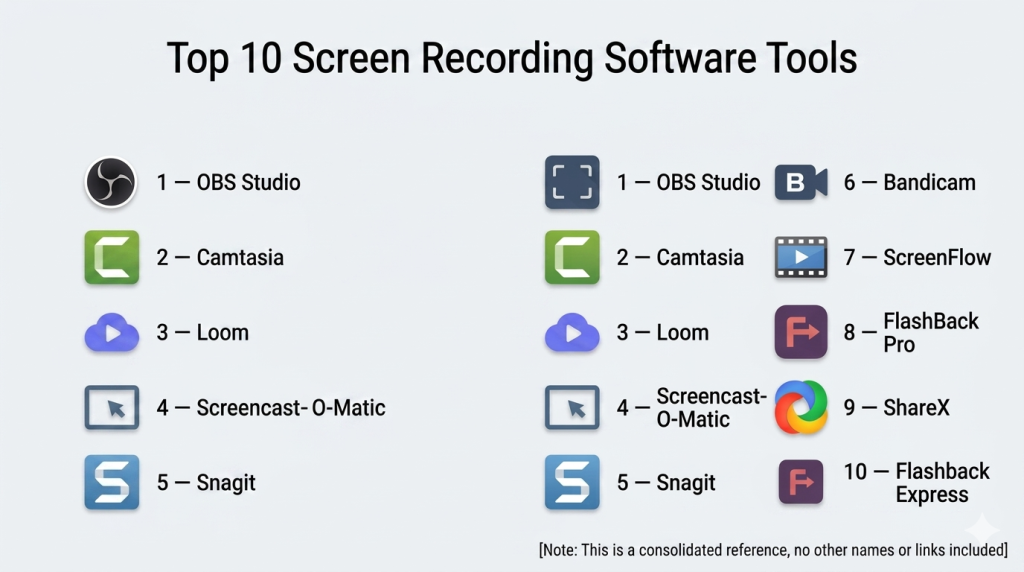
Top 10 Screen Recording Software Tools
#1 — OBS Studio
Short description: OBS Studio is a free, open‑source broadcasting and recording tool offering powerful configuration options for screen capture, live encoding, and multi‑source production.
Key Features
- Capture entire screen, windows, or selected regions
- Multiple sources and scenes with transitions
- Simultaneous recording and livestreaming
- Plugin ecosystem for extended functions
- High‑quality encoding (custom resolutions, frame rates)
- Cross‑platform support
Pros
- Free with no watermarks or limitations
- Highly customizable for advanced workflows
- Large community and plugin ecosystem
Cons
- Can be overwhelming for beginners
- No built‑in timeline editor
Platforms / Deployment
Windows / macOS / Linux / Self‑hosted
Security & Compliance
Not publicly stated
Integrations & Ecosystem
Extensible via plugins, supports virtual camera output and third‑party tools.
Support & Community
Strong open‑source community and rich tutorial ecosystem.
#2 — Camtasia
Short description: A professional screen recorder with an integrated video editor designed for tutorials, training videos, and business presentations.
Key Features
- Full HD screen capture
- Built‑in timeline editor with effects
- Cursor highlighting and annotations
- Quizzing and interactive elements
- Audio narration and music tracks
- Asset libraries and templates
Pros
- All‑in‑one record/edit workflow
- Great for educational content creation
- Easy to learn for new users
Cons
- Higher cost compared with basic tools
- Editing features less deep than dedicated editors
Platforms / Deployment
Windows / macOS / Self‑hosted
Security & Compliance
Not publicly stated
Integrations & Ecosystem
Exports to major video formats; works with LMS and sharing platforms.
Support & Community
Vendor docs, templates, and training resources.
#3 — Loom
Short description: Loom enables quick screen recording with webcam overlay, ideal for asynchronous communication and collaboration.
Key Features
- Instant screen & webcam capture
- Cloud storage and share links
- Team libraries
- Reactions and emoji feedback
- Browser and desktop versions
- View analytics for recorded videos
Pros
- Extremely simple for quick recordings
- Cloud sharing with access controls
- Good for remote teams and feedback loops
Cons
- Editing tools are basic
- Quality limits may apply on lower tiers
Platforms / Deployment
Windows / macOS / iOS / Android / Web / Cloud
Security & Compliance
Not publicly stated
Integrations & Ecosystem
Integrates with collaboration platforms and LMS via shared links.
Support & Community
Easy‑to‑follow guides and team resources.
#4 — Screencast‑O‑Matic
Short description: A versatile screen recorder and video editor that helps creators produce instructional and marketing videos.
Key Features
- Screen and webcam recording
- Built‑in editing and trimming
- AI‑generated captions
- Zoom & narration capture
- Stock music and assets
- Cloud hosting options
Pros
- Strong combination of capture + cloud hosting
- Accessibility features like captions
- Affordable pricing
Cons
- Feature set less deep than high‑end editors
- Cloud storage limited per plan
Platforms / Deployment
Windows / macOS / iOS / Android / Cloud
Security & Compliance
Not publicly stated
Integrations & Ecosystem
Cloud exports, LMS and collaboration embeds.
Support & Community
Tutorials and user forums.
#5 — Snagit
Short description: Snagit combines screen capture with lightweight video recording, annotations, and quick sharing tools.
Key Features
- One‑click screen/video capture
- Annotation and callout tools
- GIF creation
- Simplified video trimming
- Preset library for quick edits
- Easy sharing
Pros
- Very simple and fast for basic capture
- Great UI for productivity workflows
- Good for annotated tutorials
Cons
- Not designed for high‑end video projects
- Limited editing features
Platforms / Deployment
Windows / macOS / Self‑hosted
Security & Compliance
Not publicly stated
Integrations & Ecosystem
Exports to common video formats; works with email and messaging tools.
Support & Community
Vendor support and tutorials.
#6 — Bandicam
Short description: A lightweight Windows screen recorder optimized for high‑quality recordings and gaming capture.
Key Features
- Screen, game, and device recording
- Support for 4K UHD and high frame rates
- Hardware acceleration
- Custom region capture
- Real‑time drawing and webcam overlay
- Scheduled recording
Pros
- Efficient performance with minimal lag
- Excellent gaming capture features
- High resolution output
Cons
- Windows only
- No integrated editor
Platforms / Deployment
Windows / Self‑hosted
Security & Compliance
Not publicly stated
Integrations & Ecosystem
Exports recordings to major codecs; integrates with editing pipelines.
Support & Community
Documentation and forum support.
#7 — ScreenFlow
Short description: A Mac‑optimized screen recorder with a professional video editor, ideal for tutorials and presentations.
Key Features
- High‑resolution screen capture
- Timeline editor with transitions and effects
- Multi‑track audio editing
- Callout and annotation tools
- Streamlined sharing options
- Stock media library
Pros
- Clean editing workflow built‑in
- Great for business and educational videos
- Optimized for macOS performance
Cons
- macOS only
- Licensing cost
Platforms / Deployment
macOS / Self‑hosted
Security & Compliance
Not publicly stated
Integrations & Ecosystem
Works with common formats and cloud export.
Support & Community
Official support and tutorials.
#8 — FlashBack Pro
Short description: FlashBack Pro is a screen recorder with multi‑source capture and basic editing, ideal for business and instruction.
Key Features
- Screen, webcam, and audio recording
- Timeline editor
- Annotation tools
- Scheduled recording
- Export to multiple formats
Pros
- Easy capture plus editing
- Good for instructional videos
- No watermark on exports
Cons
- UI feels dated
- Editing less advanced than competitors
Platforms / Deployment
Windows / Self‑hosted
Security & Compliance
Not publicly stated
Integrations & Ecosystem
Exports to common formats; integrates with LMS or upload workflows.
Support & Community
Documentation and tutorials.
#9 — ShareX
Short description: ShareX is a free Windows tool for screen capture and lightweight screen recording with powerful automation options.
Key Features
- Region or full‑screen capture
- GIF and video recording
- Workflow automation (upload, naming)
- Annotation tools
- Many export/upload targets
Pros
- Free and highly configurable
- Lightweight and efficient
- Powerful automation options
Cons
- No built‑in editor
- Steeper learning curve
Platforms / Deployment
Windows / Self‑hosted
Security & Compliance
Not publicly stated
Integrations & Ecosystem
Configurable upload and automation workflows.
Support & Community
Active open‑source community.
#10 — Flashback Express
Short description: A free edition of FlashBack tailored for screen recording without watermarks, suitable for casual and basic users.
Key Features
- Screen and webcam capture
- Scheduled recording
- No watermark exports
- Simple interface
Pros
- Free with no watermarks
- Simple for beginners
- Great for quick captures
Cons
- Limited editing tools
- Feature restrictions vs Pro edition
Platforms / Deployment
Windows / Self‑hosted
Security & Compliance
Not publicly stated
Integrations & Ecosystem
Exports to standard formats.
Support & Community
Basic user guides.
Comparison Table (Top 10)
| Tool Name | Best For | Platform(s) Supported | Deployment | Standout Feature | Public Rating |
|---|---|---|---|---|---|
| OBS Studio | Open‑source pros | Win/mac/Linux | Self‑hosted | Custom workflow | N/A |
| Camtasia | Professional tutorials | Win/mac | Self‑hosted | Built‑in editor | N/A |
| Loom | Asynchronous communication | Web/Win/mac/iOS/Android | Cloud | Rapid share links | N/A |
| Screencast‑O‑Matic | Tutorial + cloud | Win/mac/iOS/Android | Cloud | Caption & cloud | N/A |
| Snagit | Quick productivity videos | Win/mac | Self‑hosted | Speed & annotations | N/A |
| Bandicam | High‑perf gaming | Win | Self‑hosted | High‑framerate capture | N/A |
| ScreenFlow | Mac creation workflow | macOS | Self‑hosted | Professional editor | N/A |
| FlashBack Pro | Business desktop videos | Win | Self‑hosted | Multi‑source capture | N/A |
| ShareX | Free advanced capture | Win | Self‑hosted | Automation workflows | N/A |
| FlashBack Express | Beginner recording | Win | Self‑hosted | No watermark free | N/A |
Evaluation & Scoring of Screen Recording Software
| Tool Name | Core (25%) | Ease (15%) | Integrations (15%) | Security (10%) | Performance (10%) | Support (10%) | Value (15%) | Weighted Total |
|---|---|---|---|---|---|---|---|---|
| OBS Studio | 10 | 7 | 8 | 6 | 9 | 8 | 10 | 8.50 |
| Camtasia | 9 | 8 | 8 | 6 | 8 | 9 | 7 | 8.00 |
| Loom | 8 | 10 | 7 | 6 | 7 | 8 | 8 | 8.10 |
| Screencast‑O‑Matic | 8 | 8 | 7 | 6 | 7 | 8 | 8 | 8.00 |
| Snagit | 7 | 9 | 7 | 6 | 7 | 8 | 8 | 7.75 |
| Bandicam | 8 | 8 | 7 | 6 | 8 | 7 | 7 | 7.75 |
| ScreenFlow | 9 | 8 | 8 | 6 | 8 | 8 | 7 | 8.00 |
| FlashBack Pro | 7 | 8 | 7 | 6 | 7 | 7 | 8 | 7.55 |
| ShareX | 7 | 7 | 8 | 6 | 8 | 7 | 10 | 7.80 |
| FlashBack Express | 6 | 9 | 6 | 6 | 6 | 7 | 10 | 7.45 |
How to interpret the scores:
- Higher totals reflect a blend of recording capability, ease of use, integration potential, and overall value.
- Free and open‑source tools score highly on value, while commercial tools deliver robust feature sets and built‑in editors.
Which Screen Recording Tool Is Right for You?
Solo / Freelancer
- OBS Studio, Loom, ShareX, and FlashBack Express offer easy or free ways to capture screen content with flexible options.
SMB
- Camtasia, Screencast‑O‑Matic, and Snagit balance capture with editing and sharing workflows.
Mid‑Market
- ScreenFlow, Bandicam, and FlashBack Pro provide multi‑source capture and enhanced productivity features.
Enterprise
- Camtasia and OBS Studio serve in larger workflows when paired with templates, training content, and team sharing.
Budget vs Premium
- Budget: OBS Studio, FlashBack Express, ShareX
- Premium: Camtasia, ScreenFlow
Feature Depth vs Ease of Use
- Depth: OBS Studio, Camtasia, ScreenFlow
- Ease: Loom, Snagit
Integrations & Scalability
- Best: Loom, Screencast‑O‑Matic, OBS Studio
Security & Compliance Needs
- Evaluate data controls (cloud storage access, shared links) for collaborative or client‑facing content.
Frequently Asked Questions (FAQs)
1. What is screen recording software?
Screen recording software captures video of your computer display, often with audio and webcam layers, for tutorials, demos, gaming clips, and presentations.
2. Can I record both screen and audio?
Yes — most tools let you record system audio, microphone input, and even separate audio channels.
3. Is there free screen recording software?
Yes — OBS Studio, ShareX, and FlashBack Express provide free options with varying levels of features.
4. Do these tools impact PC performance?
High frame rates and high resolution recordings can tax CPU and GPU; tools with hardware acceleration help reduce performance impact.
5. Can I annotate while recording?
Many tools (Snagit, Screencast‑O‑Matic, Camtasia) offer annotation during or after recording.
6. Are there built‑in editors?
Yes — Camtasia, ScreenFlow, and Screencast‑O‑Matic include editing timelines; others rely on external editors.
7. Can I capture webcam overlays?
Yes — most platforms support simultaneous webcam capture for picture‑in‑picture effects.
8. Do mobile devices support screen recording tools?
Several have iOS/Android options (Loom, Screencast‑O‑Matic), while others focus on desktop.
9. Can I schedule recordings?
Some tools (Bandicam, Screencast‑O‑Matic) support scheduled recording.
10. Which software is best for gaming?
OBS Studio and Bandicam excel for high‑performance gaming capture.
Conclusion
Screen recording software is a vital tool for creators, educators, developers, and teams needing to communicate visually with impact. Whether you need a powerful open‑source solution like OBS Studio, an all‑in‑one toolkit like Camtasia, lightweight productivity tools like Snagit, or cloud‑centric offerings like Loom, there’s a solution for every workflow and budget.To choose wisely, define your priorities — quality, editing workflow, cloud integration, or ease of use — test a few options with real project scenarios, and validate how well each platform fits your audience’s expectations and your team’s workflow.

Find Trusted Cardiac Hospitals
Compare heart hospitals by city and services — all in one place.
Explore Hospitals
Screen recording is great for tutorials, demos, and support, but audio problems can make an otherwise useful recording hard to follow. Background noise, unclear microphone levels, or missing system sounds may only become noticeable after the recording is finished. A quick audio and video check before starting a longer session can prevent having to record everything again.